

Audit a schedule
When someone hands you a schedule — a contractor's baseline, a subcontractor's monthly update, a colleague's plan you're about to submit to an owner — you have to decide whether to trust it before you put your name on it. The Third-Party Schedule Audit is an Agentic Flow built for exactly that: point it at a schedule you didn't build, tell it what you're worried about, and Owl runs a forensic integrity review the way an experienced scheduler would — then hands you a ranked findings report and a dashboard.
It looks for the things a summary email won't mention: open-ended logic, padded or negative float, hard date constraints propping up the finish, unrealistic durations, progress that doesn't add up, and — when you give it more than one version — the quiet changes between updates.
Note: This is an integrity and manipulation review, not a delay analysis. If you need to measure how much a specific event pushed the finish, use Time Impact Analysis or one of the other delay-analysis flows. Reach for the audit when the question is "can I trust this schedule?"
Before you start
Have the schedule you were given ready — a P6 XER/XML, an MPP, or an Excel file — or open the project if the schedule is already loaded into Owl. If you have earlier versions or the original baseline, have those files too: version-to-version comparison is where the most revealing findings come from. And know, in a sentence, why you don't fully trust it. That one sentence steers where Owl digs hardest.
Step 1 — Launch the audit
Open Agentic Flows (or press ⌘J) and pick Third-Party Schedule Audit under Forensic Analysis.
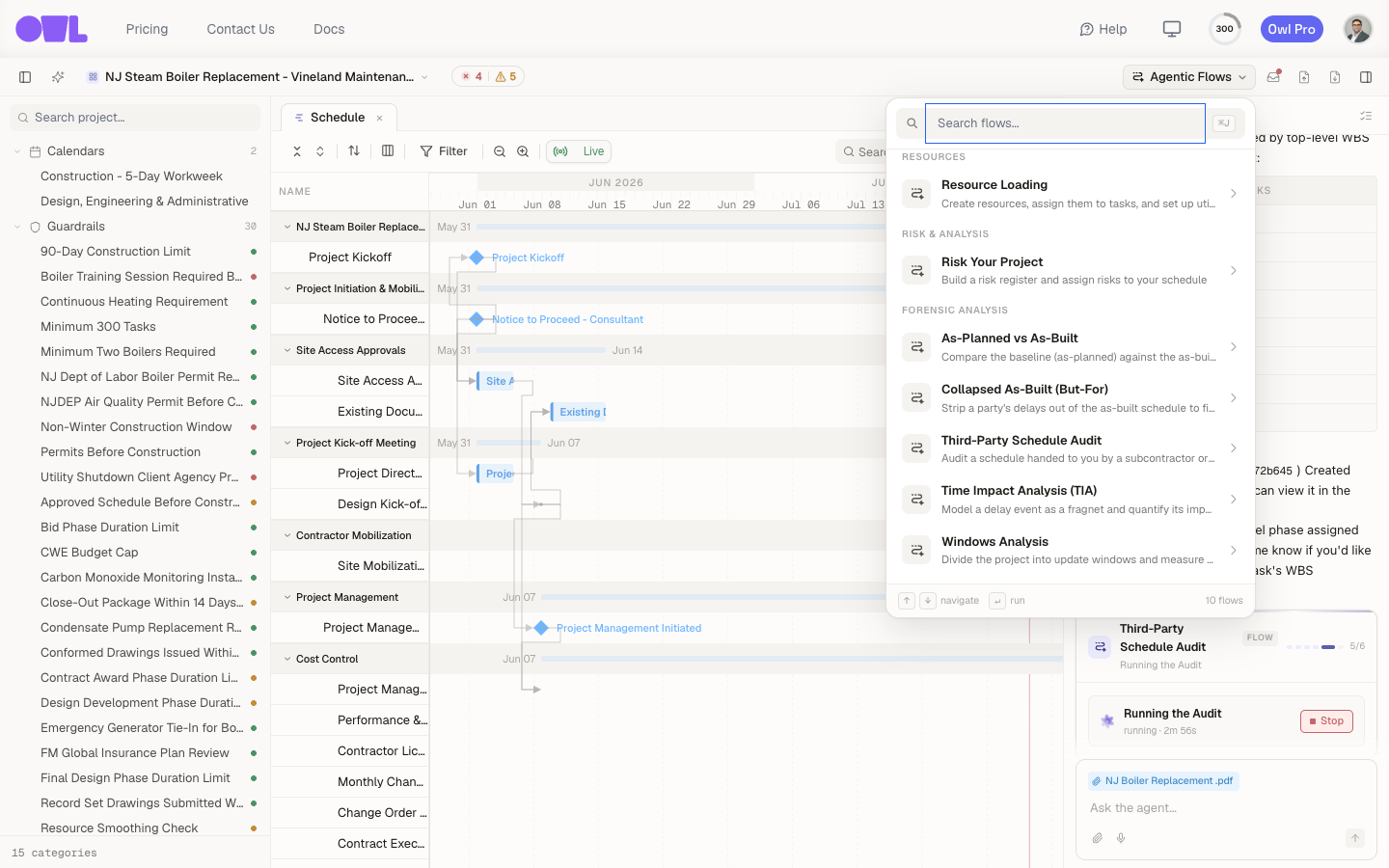 121Open Agentic Flows — or press ⌘J and start typing.2Third-Party Schedule Audit, under Forensic Analysis — audit a schedule handed to you by an outside party.
Step 2 — Set up the audit
The setup step asks what you're auditing and what you're worried about.
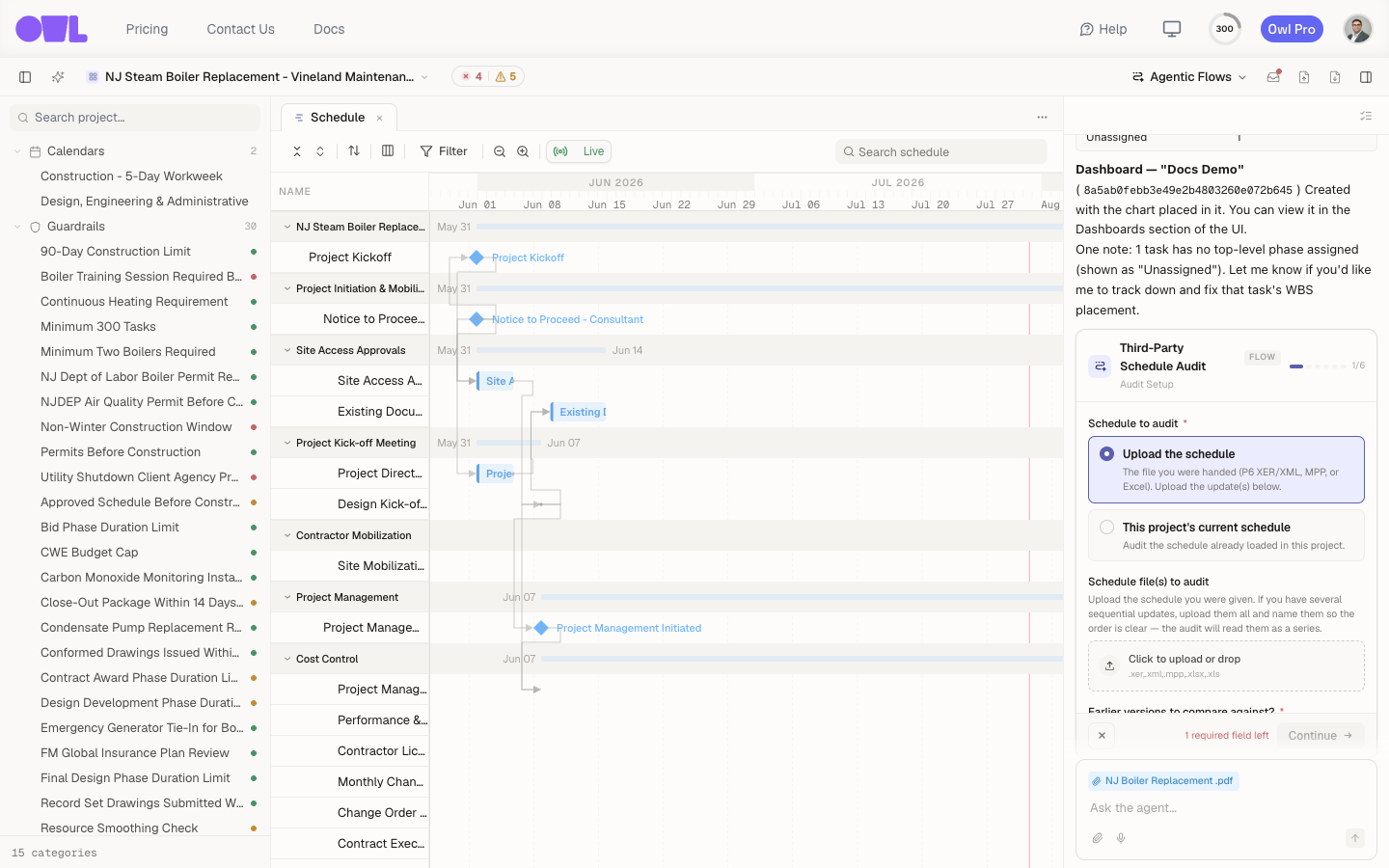 121Schedule to audit — upload the file you were handed, or point the audit at the schedule already loaded in the project.2Earlier versions to compare against — the forensic core. Compare updates, the baseline, or your project's stored history.
- Schedule to audit — upload the file you were handed, or point the audit at this project's current schedule if it's already loaded.
- Earlier versions to compare against — choose Single file only to vet one file on its own merits, upload earlier versions / baseline as native files, or use this project's history to compare against the versions Owl has stored.
- What's the context, and what are you worried about? — a required sentence or two: who produced the schedule, and what you suspect. Owl runs every standard integrity check regardless, but this steers what it scrutinizes first.
- Anything to emphasize? — optionally nudge it toward logic, float and constraints, progress integrity, version-to-version changes, or durations. Leave it blank to let Owl decide from the file and your concern.
Caution: Relationship-type flips (an FS link quietly changed to FF to slide a driver off the critical path), inserted lags, and constraint changes can only be proven from the native file for each version. A project's stored history keeps durations, dates, float, and progress per version — but not per-version logic types. If all you have is history, Owl will still find drift, and it will tell you plainly what it can't prove without the original files.
Step 3 — Answer a couple of questions
Owl may ask one or two targeted questions before it plans — for example, the contractual completion date, or which file is the latest. Answer what you know; skip what you don't.
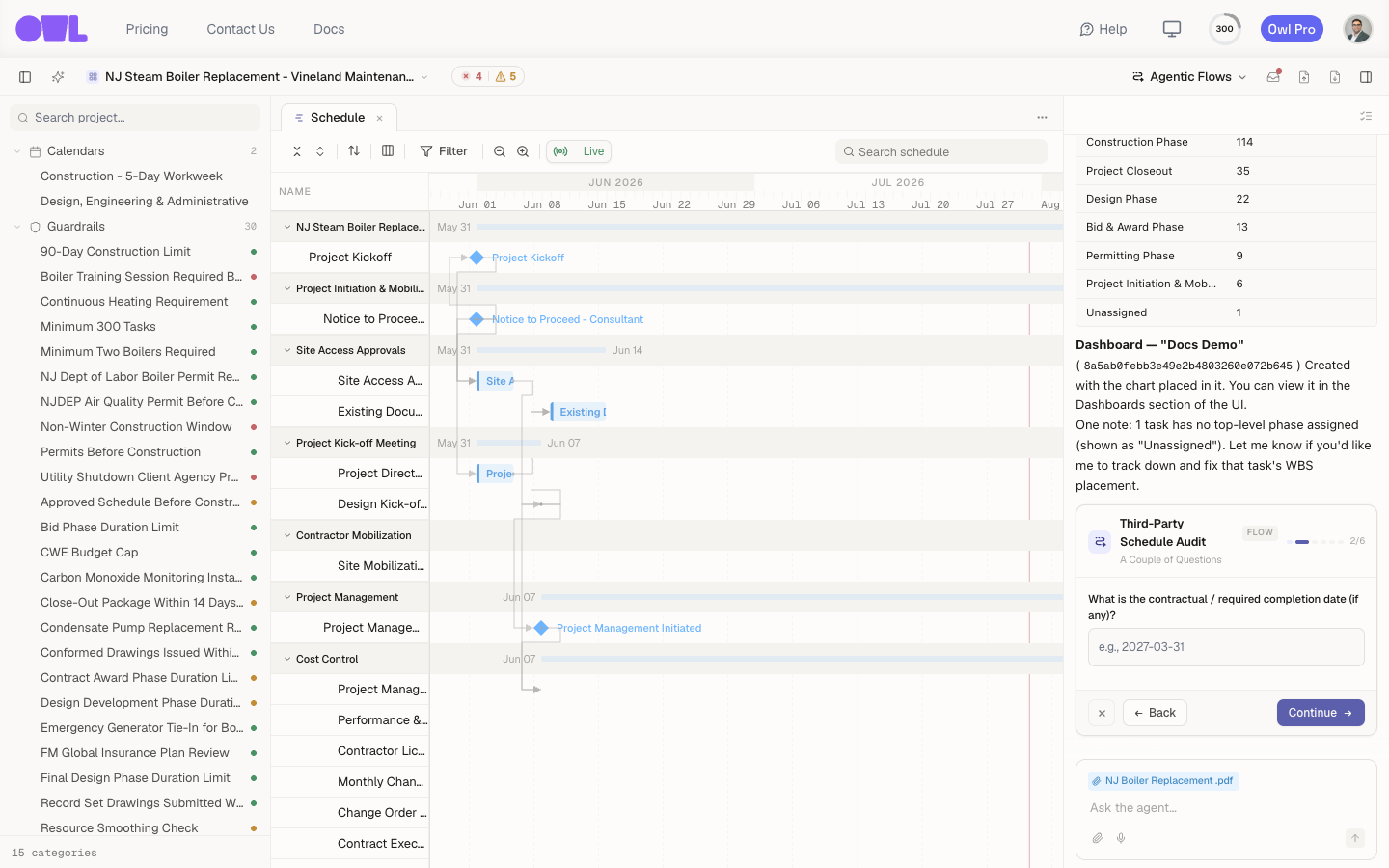 11A short, targeted question — here, the contract completion date, so Owl can judge the forecast finish against it.
Step 4 — Review the audit plan
Before it opens the schedule, Owl proposes a tailored audit plan — a table of the specific checks it will run, what each one looks for, and why it matters given your concern. This is your steering point.
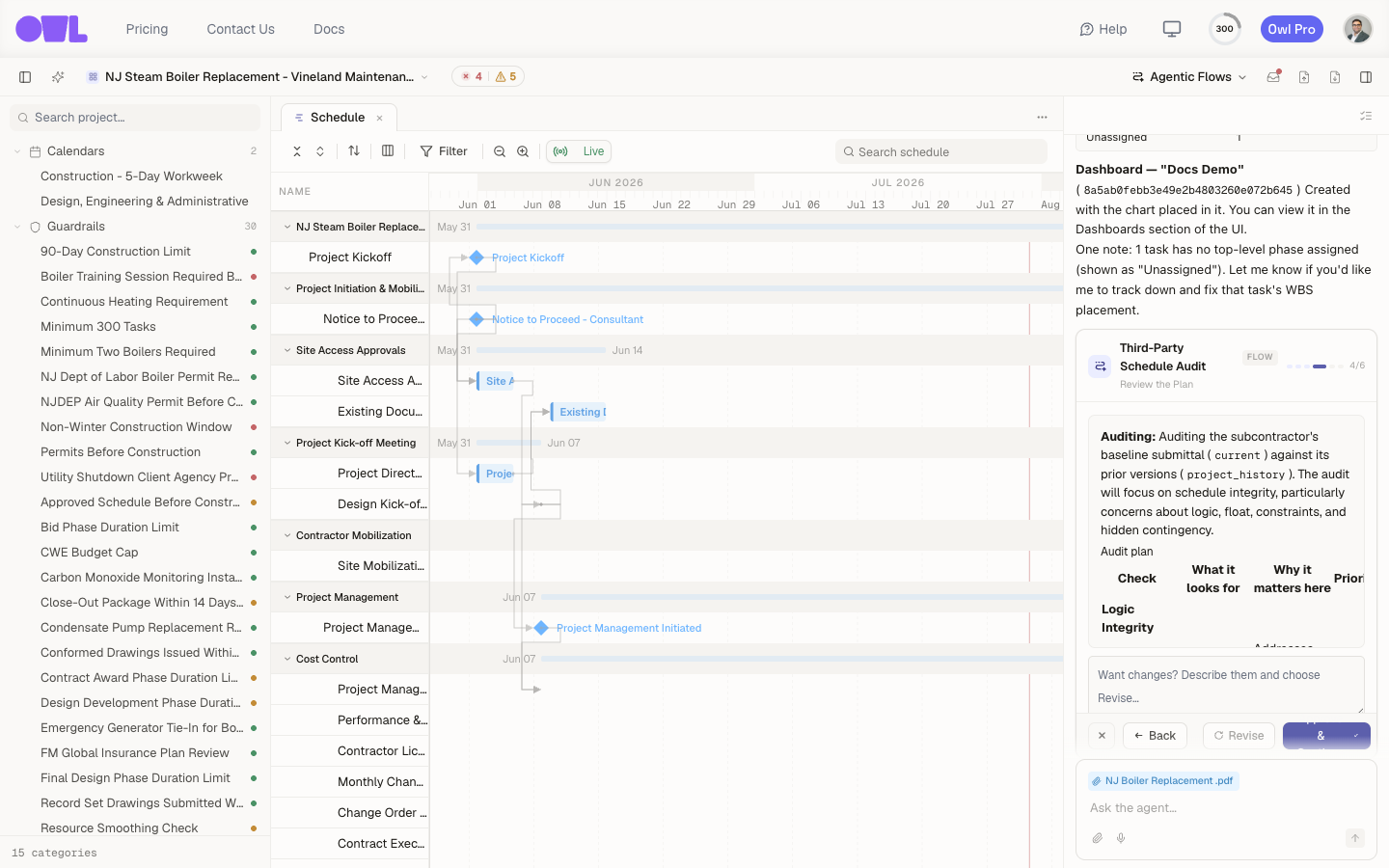 121The audit plan — every check Owl will run, tied back to what you said you were worried about.2Describe changes and Revise, or Approve to run the audit.
Read it, and if you want it to weight something differently — go harder on constraints, add a check, drop one — describe the change and choose Revise. When it reflects what you care about, Approve and Owl runs the audit. This is the longest step; Owl imports the file, runs every check, and builds the report and charts.
Step 5 — Read the findings
Owl produces two things without ever touching your live plan: a findings report under Documents and a Schedule Audit dashboard under Dashboards. The audit here was run on a real 424-activity boiler-replacement schedule submitted as a "baseline."
The report
The report opens with a plain-language verdict, then a severity-ranked findings table — every issue, its evidence, and why it matters.
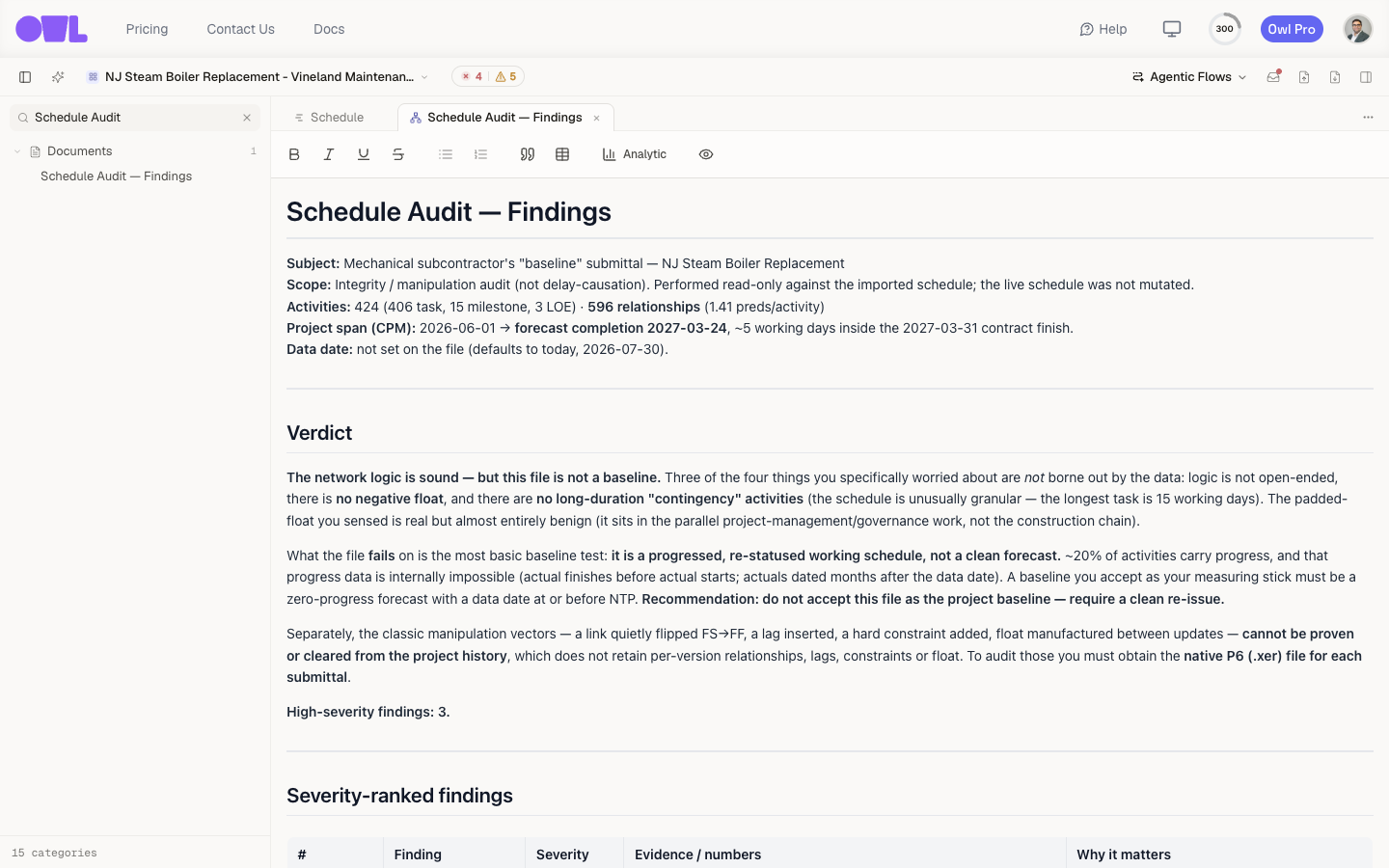 121The header — activity and relationship counts, the CPM forecast finish against the contract date, and the data date.2The verdict in plain language. Here: the network logic is sound, but the file is a progressed working schedule, not a clean baseline.
Notice the audit doesn't just confirm your fears — it clears the ones the data doesn't support. Three of the four things this user worried about (open-ended logic, negative float, long "contingency" activities) were not borne out, and Owl says so. What it caught instead were the real problems: 20% of the "baseline" was already progressed, some of that progress was internally impossible (11 activities finishing before they start; dozens of actuals dated in the future), and the file had no data date set — a 59-day hot start. It also correctly judged that the 30% of high-float activities were benign parallel governance work, not hidden contingency in the build.
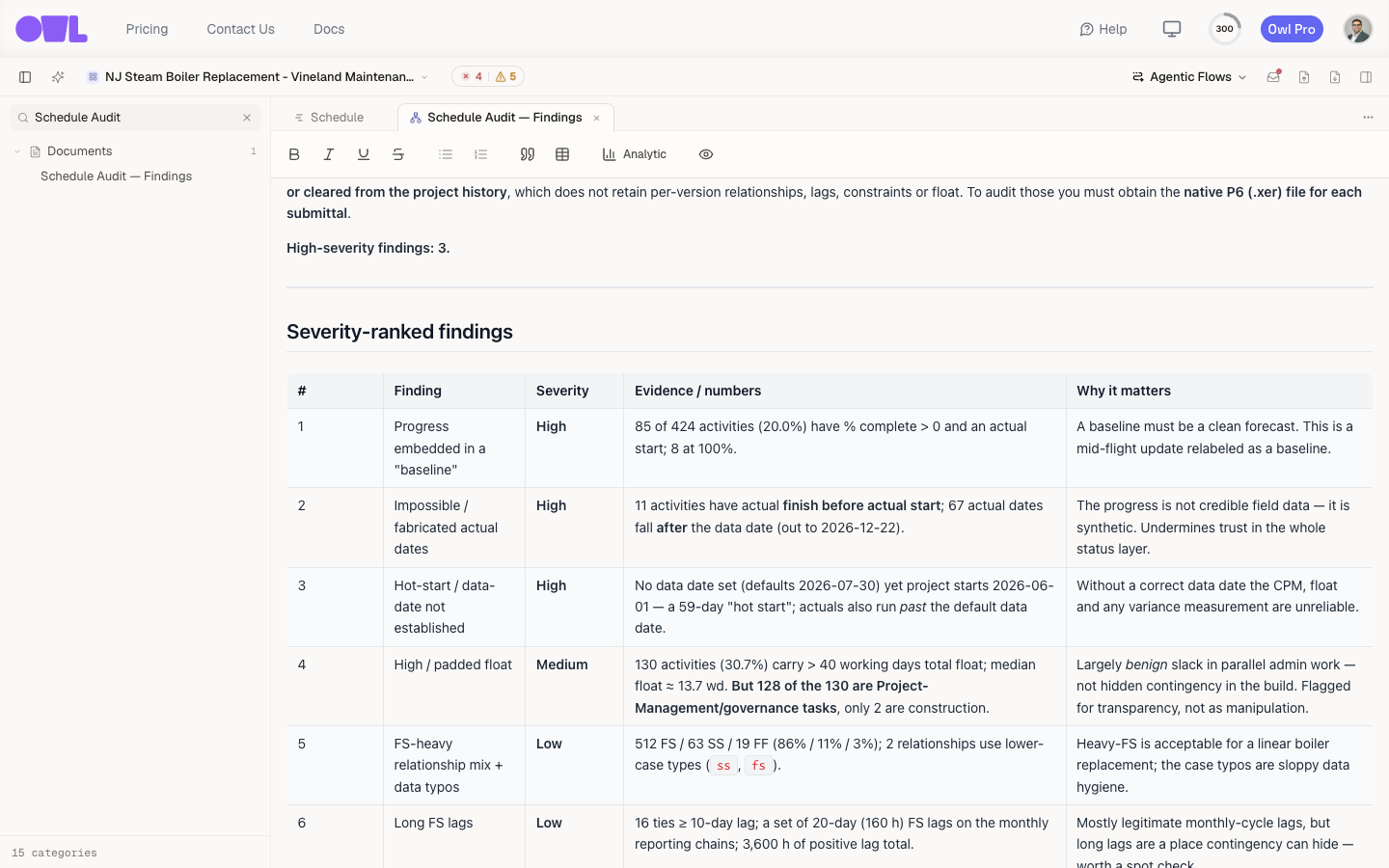 11Findings are severity-ranked — three High, one Medium, two Low — each with the numbers behind it and why it matters.
The analytics
The report is self-contained: Owl embeds the charts it built right inline, so the evidence sits next to the finding.
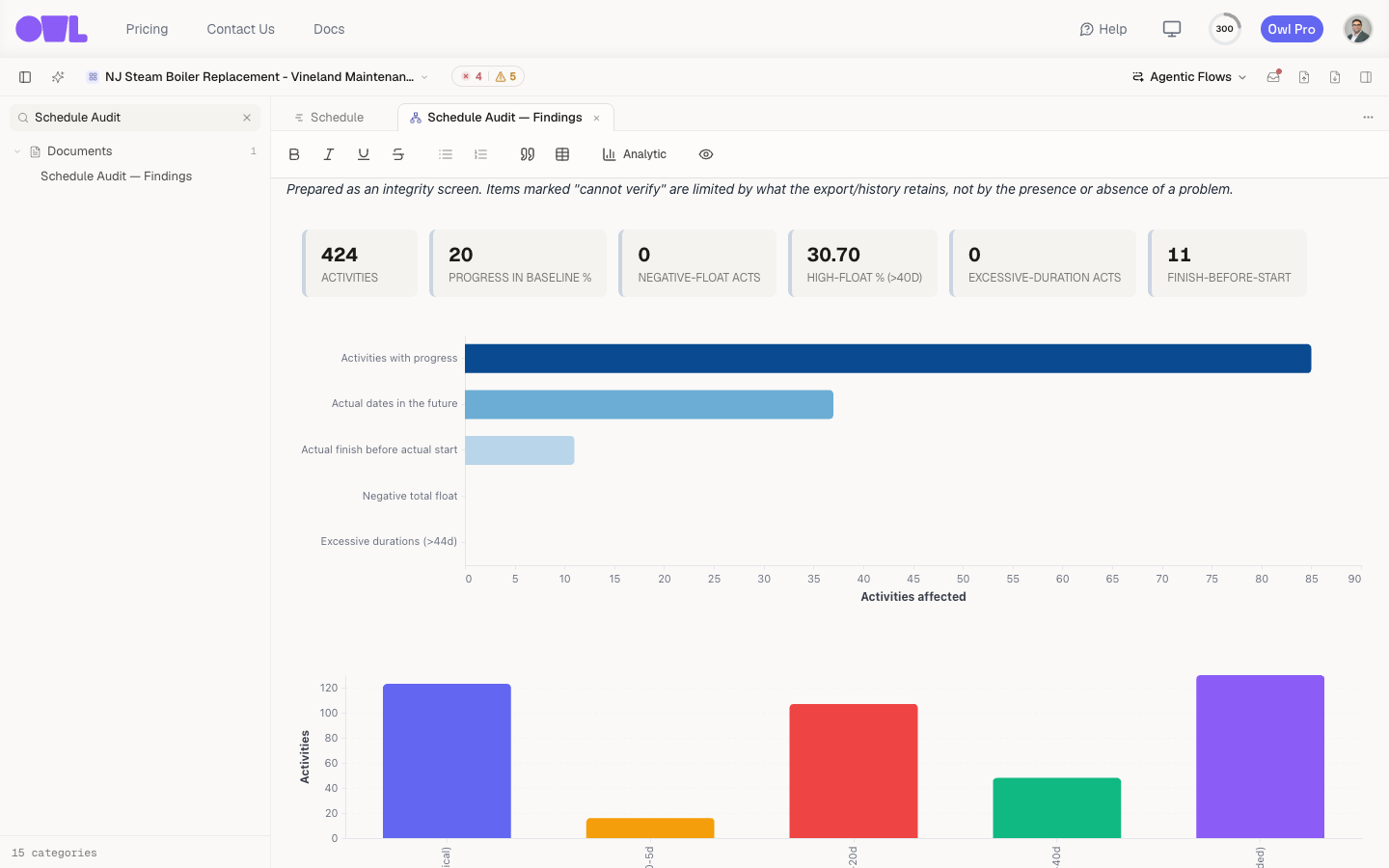 121A KPI strip of the headline integrity metrics — activities, % progressed, negative-float count, high-float %, over-long durations, impossible actuals.2Charts render inline — here, the baseline-integrity anomalies driving the two High findings.
Alongside the anomalies chart, the audit built a total-float distribution (to expose padding), a float-by-phase breakdown (which showed the padding was all in governance work), and a version-to-version change summary across all 17 stored versions — which found zero duration or scope changes, only progress re-statusing.
The dashboard
The same analytics are collected into a standalone Schedule Audit dashboard, so you can revisit the metrics without reopening the report.
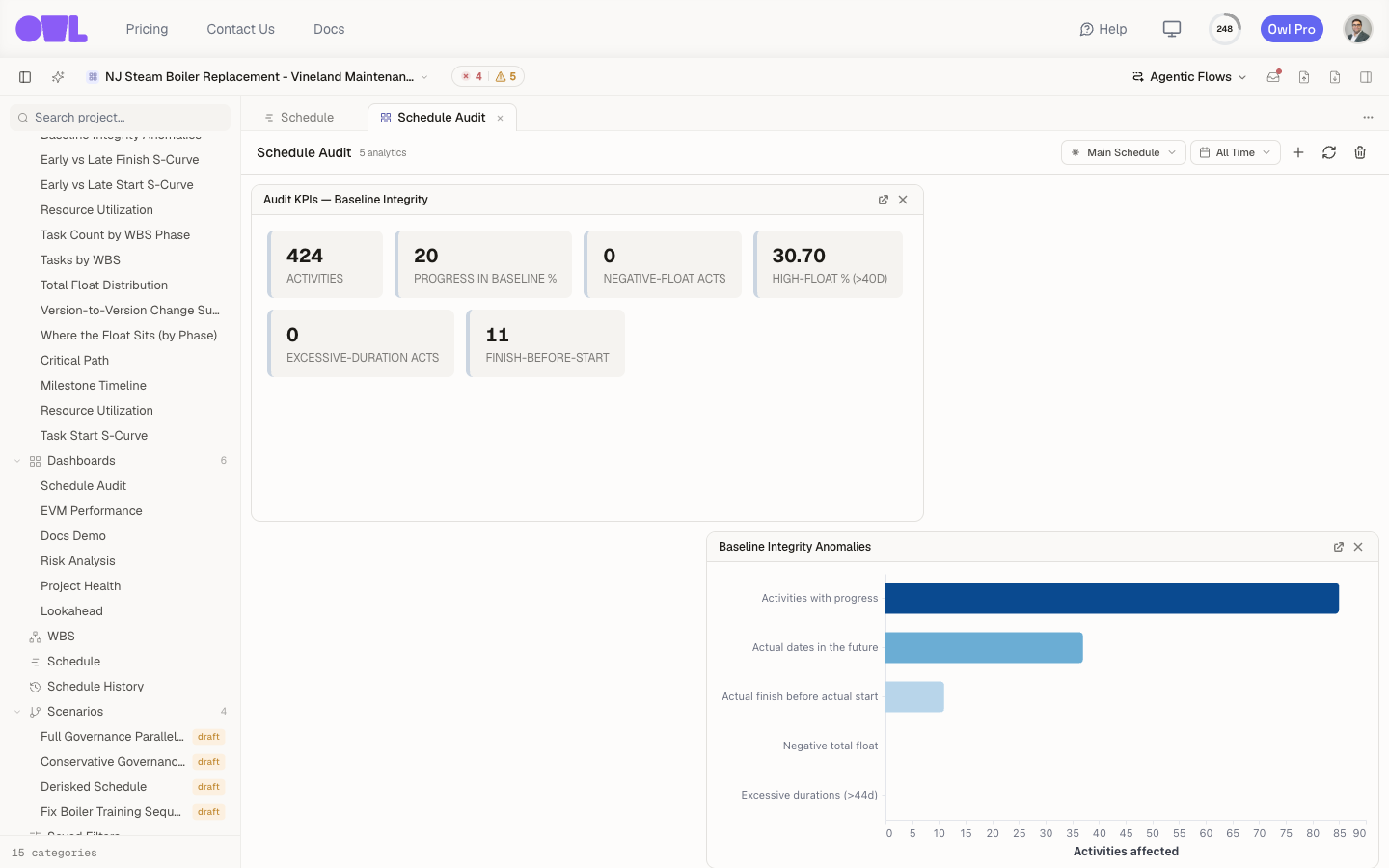 11A standalone Schedule Audit dashboard — the integrity metrics as live tiles you can open any time.
What to do next
- Send it back — export the findings report and attach it to your review comments, or turn the high-severity findings into questions for the author.
- Fix what you own — if it's your schedule, Fix issues with your schedule walks through clearing the failures.
- Watch it over time — put the integrity metrics on a custom dashboard so every future update is graded automatically, and use Schedule history to compare any two versions yourself.