

Share everything with your organization
Sharing project by project works, but it doesn't scale: a firm with thirty projects and twelve schedulers would be thirty-six-hundred separate decisions. An organization is the answer. It's the container your firm's projects live in, and everyone in it gets a role on every project it holds.
Note: An organization is a place, not a group of people. It holds projects, and being in it is what gives you access to them. It isn't a "team" you can grant access to as a unit — that's a separate thing, which is why Owl doesn't call this one a team.
You'll find organizations under Settings → Organizations, reachable from the settings gear in a project or at /settings/organizations.
Create an organization
Click New organization. Owl walks you through three steps, and the last two are skippable — an empty organization is a perfectly normal thing to have for a while.
1 · Name. Usually the firm's name. It's shown in the project selector, on every invitation, and to everyone in it. You can change it later.
2 · People. Add colleagues by email and pick the role they get. One address or a pasted list — anyone who already uses Owl joins straight away; an address Owl doesn't know becomes a pending invitation that activates when they sign up.
3 · Projects. This is the step that matters. Creating an organization is the moment your existing projects are otherwise stranded outside it, so Owl offers to move them in — per project, switched off by default, naming on each row who gains access if you move it. Projects you leave out stay personal.
Important: Moving a project into an organization is a permission change, not a filing decision. Everyone in the organization can open it afterwards. Owl never does this silently — but it's worth reading the rows before you confirm.
Invite people
Open the organization's People page and click Invite people. Pick the role once and paste as many addresses as you like.
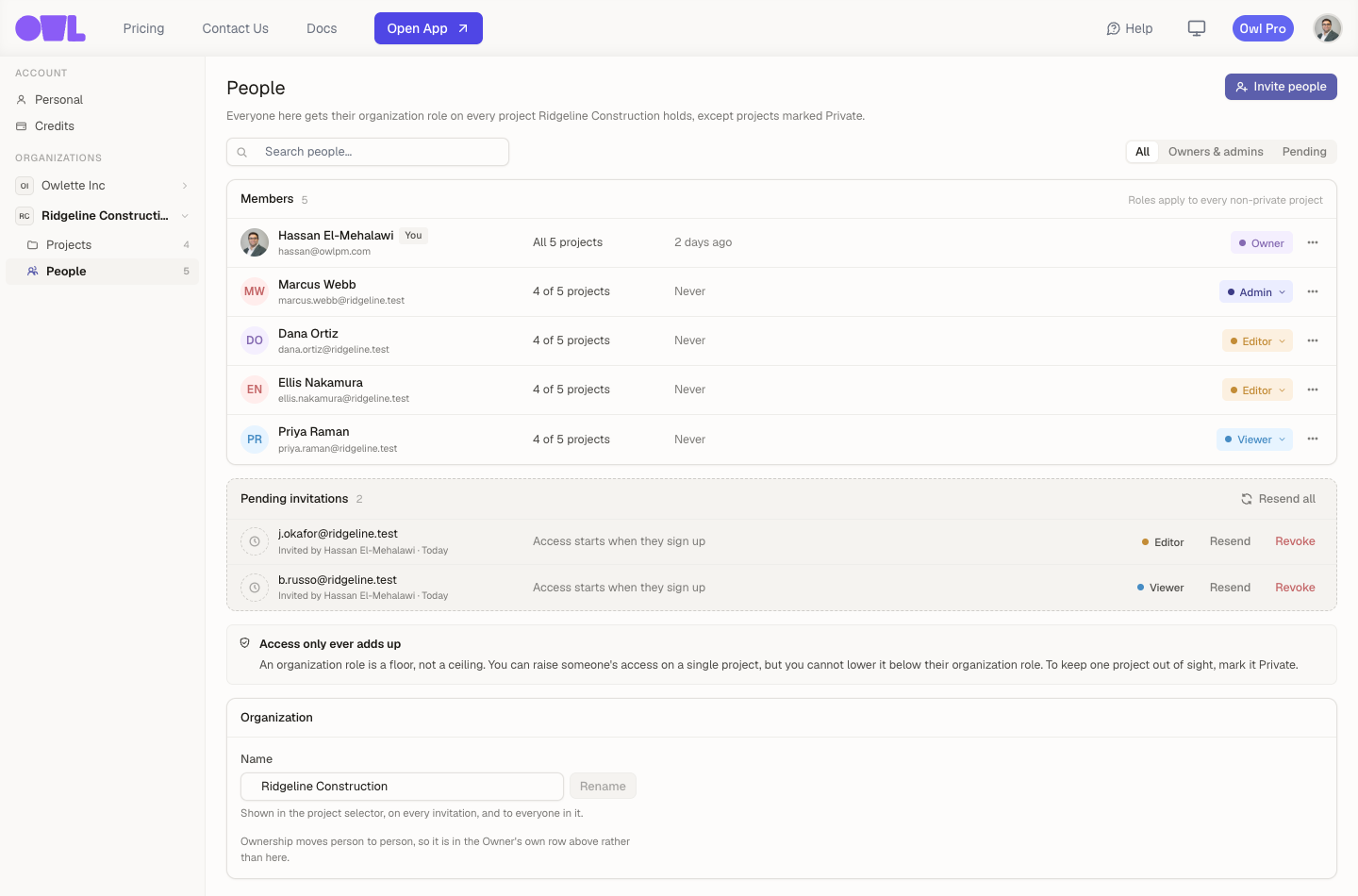 1234561Invite people — one address or a pasted list, one role for all of them.2The members, with the role each holds across every project the organization holds.3How much of the organization each person actually reaches. 4 of 5 means one project is marked Private and they aren't on it.4Change somebody's role here and it applies to every project at once. The ⋯ menu holds Remove and Make them the Owner.5Pending invitations — nothing is granted until they sign up. Resend issues a fresh link and kills the old one.6Renaming the organization lives at the foot of the page, below the people it's about.
The four roles are the same ones used on projects, and they mean the same thing:
| Role | In an organization |
|---|---|
| Viewer | Can open every project it holds and read the schedule. No changes. |
| Editor | Can change schedules, run the agent, add documents and scenarios, across every project. |
| Admin | All of that, plus manage people and settings. |
| Owner | Full control. One at a time. Cannot be removed or demoted. |
Each member's row shows how much of the organization they actually reach — All 12 projects, or 9 of 12 when some are marked Private.
Pending invitations get their own group. You can Resend one, Resend all at once, or Revoke any that shouldn't have gone out.
Note: Resending rotates the link — the old one stops working. That's deliberate: a resend usually means the first email went astray, and you don't want a forwarded copy staying live forever.
Change a role, remove somebody, hand over ownership
The ⋯ menu on a member's row holds the destructive actions, and the role dropdown holds the rest.
- Change a role — takes effect across every project the organization holds, immediately.
- Remove from organization — Owl tells you how many projects that person loses access to before you confirm. Anything granted to them directly on a project survives; only the inherited access goes.
- Make them the Owner — the Owner role transfers, and you become an Admin. There's one Owner at a time.
The Owner's row has no demote and no remove — not disabled buttons, an absence, with the rule in their place. Transfer ownership first.
Renaming the organization lives in the Organization card at the foot of the same page, below the people it's about.
The organization's projects
The Projects page lists everything the organization holds, with the size of each schedule and a Private badge where one applies. Click any row to open that project's access page — the same page the Share button opens, because "what this organization holds" and "who can open this project" are two views of one fact.
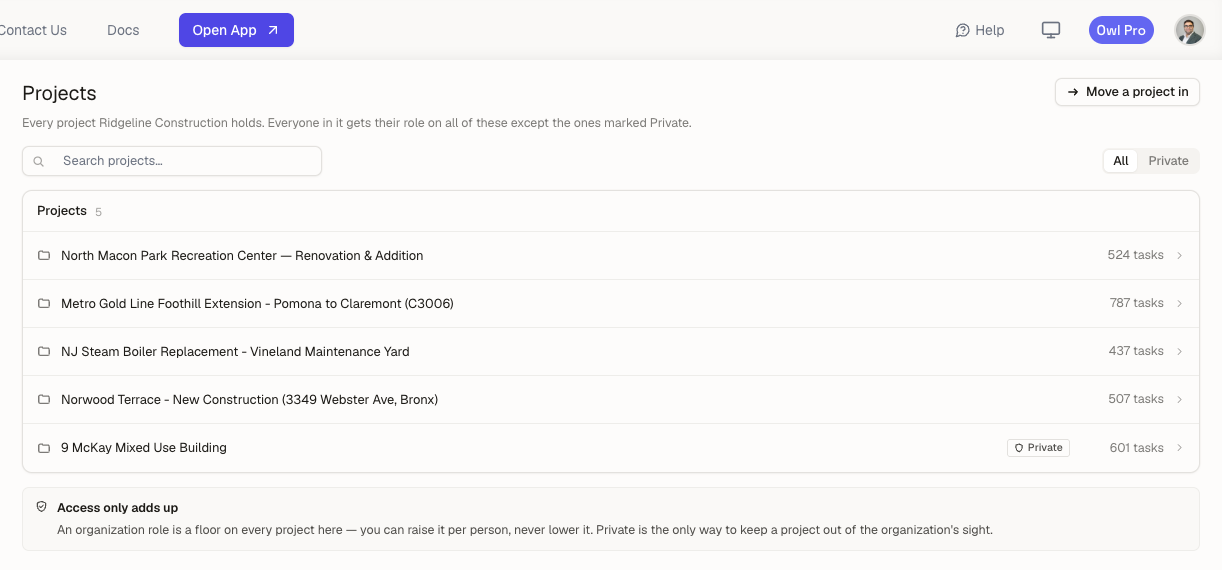 1231Move a project in — bring personal projects under the organization, each row naming who gains access.2Every project the organization holds. Click a row to open that project's access page — the same page the Share button opens.3The Private badge. Nobody inherits access to this one; only people granted on it directly can open it.
Move projects in from the same page to bring personal projects under the organization in a batch, each one showing who gains access.
New projects land in the right place from the start: the New project dialog has a Lives in field, defaulting to your organization when you're only in one, with Personal always available.
Hide one project from the organization
Sometimes one project shouldn't be visible to everyone — a bid, an internal review, a claim. Open that project's access page and turn on Private.
While Private is on, nobody inherits access to it. The only people who can open it are the ones granted on it directly. It still belongs to the organization — it just doesn't hand out access through it, and it carries a Private badge everywhere it appears.
Private is the only way to keep a project away from the organization. You can't remove one person from one project; see How access works for why.
Belonging to more than one
You can be in as many organizations as you need — a consultant working with three firms keeps three, and each holds its own projects and people.
There's no organization switcher, and you don't need one. Every organization's projects sit in the project selector at once, grouped by organization, with anything outside them under Personal.
The Organizations index page answers the question the settings rail can't: which of your projects are still outside an organization, and what would change if they weren't. That's what the Personal card there is for.
What to do next
- Share one project instead — an outside client or a single consultant belongs on a project, not in the organization.
- Understand the rules — How access works covers what happens when someone's organization role and their project role disagree.
- Get people working — track progress and collaborate once everyone's in.