

Fix issues with your schedule
Once you've found the issues in a schedule, the next job is clearing them. Owl PM gives you three ways to do it — hand the fix to Owl, iterate with it in the chat, or edit the schedule yourself — and then re-checks the rule so you know it's actually resolved.
The workflow is a loop: fix, re-validate, repeat until it's green.
Option 1 — Let Owl propose the fix
Open a failing guardrail and click Propose fix.
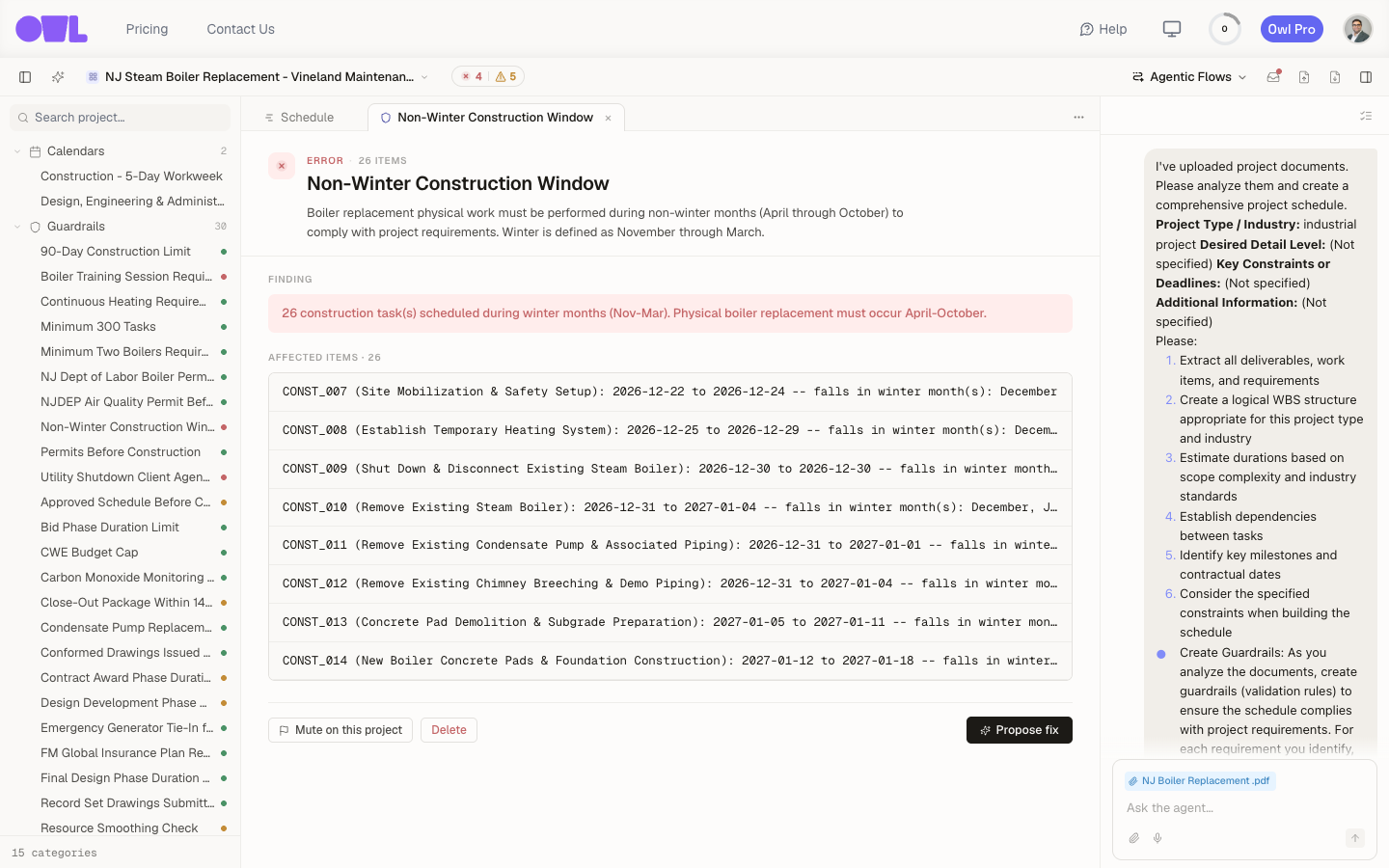 121The affected tasks Owl reads to build the fix — each one with the reason it breaks the rule.2Click Propose fix and Owl works out a schedule change that satisfies the rule.
Owl reads the rule and the specific tasks that break it, then works out a schedule change that satisfies the rule — re-sequencing tasks, shifting them out of a restricted window, splitting an over-long activity — and shows you what it intends to change. You review the proposal and decide whether to apply it.
This is the steer-and-review loop again: Owl proposes, you approve or push back. It doesn't silently rewrite your schedule.
Caution: "Propose fix" changes the schedule to satisfy the rule. If the rule itself is wrong — the wrong date window, an outdated cap — fix the guardrail instead, or the correct schedule will keep failing a bad rule. See the note on broken rules below.
Option 2 — Iterate with Owl in the chat
Often the fix needs judgment, and a back-and-forth is faster than a single button. Work it out in the chat, where you can give direction, see what Owl proposes, and refine.
Because you're steering, you can trade off the fix against everything else — the finish date, the critical path, other guardrails — instead of taking a mechanical change you then have to unwind.
Option 3 — Fix it yourself
Some issues are quicker to correct by hand — set a missing predecessor, adjust a duration, move a task to the right calendar. Edit the schedule directly; Owl re-checks the guardrails on the change just the same, whether you made it or it did.
Close the loop: re-validate
After any fix, Owl automatically reruns all guardrails. When it does, you will see the number of failed guardrails change in the toolbar near the top of the screen. You can also re-run the checks yourself by opening the guardrails summary and clicking Revalidate.
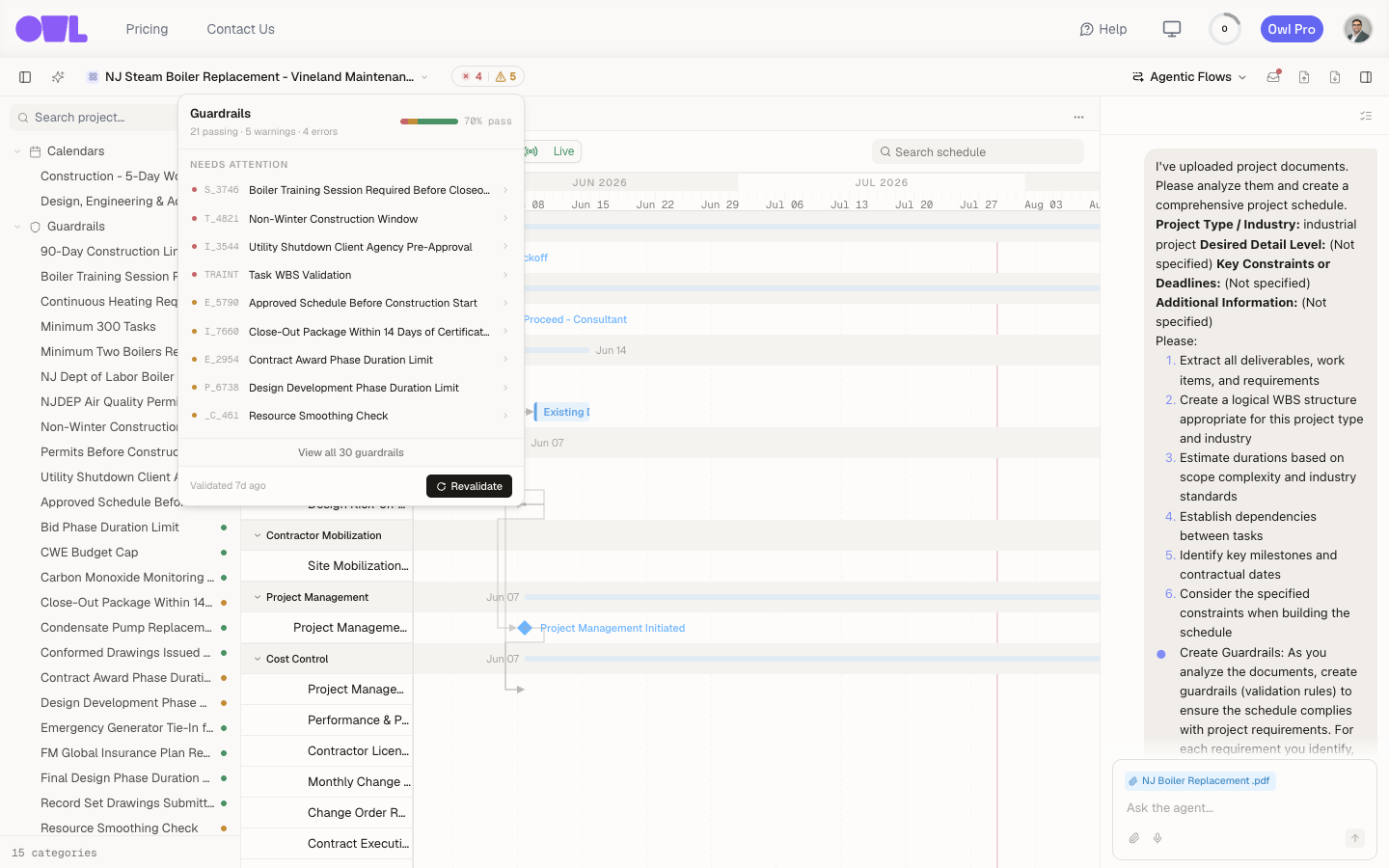 1231Open the guardrails summary.2Click Revalidate to re-run every guardrail against the current schedule.3The pass rate updates, and the rule you fixed should move out of Needs attention.
The pass rate updates and the rule you fixed should move out of Needs attention. If it's still red, open it again — the finding will show what's still breaking it. Repeat until everything's green.
Tip: Fixing one issue can surface another — pulling work out of a winter window might create a resource clash. That's the loop working as intended: fix, re-validate, and handle whatever the next pass surfaces, rather than trying to get everything right in one edit.
When the rule is the problem, not the schedule
Sometimes a guardrail fails because its own logic is off — a date window that no longer applies, a cap that changed. In that case, fix the rule, not the schedule: tell Owl what the rule should be ("the duration cap is now 120 days, not 90"), or mute or delete a guardrail that no longer applies from its detail view.
What to do next
- Prevent the issue next time — the fix you just made can become a guardrail so the problem is caught automatically on every future change.
- Re-audit after big fixes — a round of fixes is a good moment to audit the schedule again and confirm nothing drifted.