

Analyze a delay
Something went wrong on site — an unforeseen condition, a late owner decision, a long-lead item that slipped — and the job is now behind. To ask for more time, defend a claim, or process a change order, you usually have to show your work: a written analysis that proves how much delay the event actually caused. Owl PM runs that analysis for you and writes the report.
There are four guided flows, each a recognized industry method for measuring delay. You pick the one that fits your situation, answer a few questions, and Owl builds the analysis and a formal report document you can submit.
Note: These flows follow the standard methods published by AACE International (the professional body for cost and schedule analysis) — the same methods used in real time-extension requests and disputes. You don't need to know the standards; the flow walks you through it. Where a page uses a term of art, it's explained in plain language.
How every delay flow works
All four flows share the same safe, reviewable shape:
-
Launch it. Open Agentic Flows (the button in the top toolbar, or press ⌘J) and pick a flow from the Forensic Analysis group.
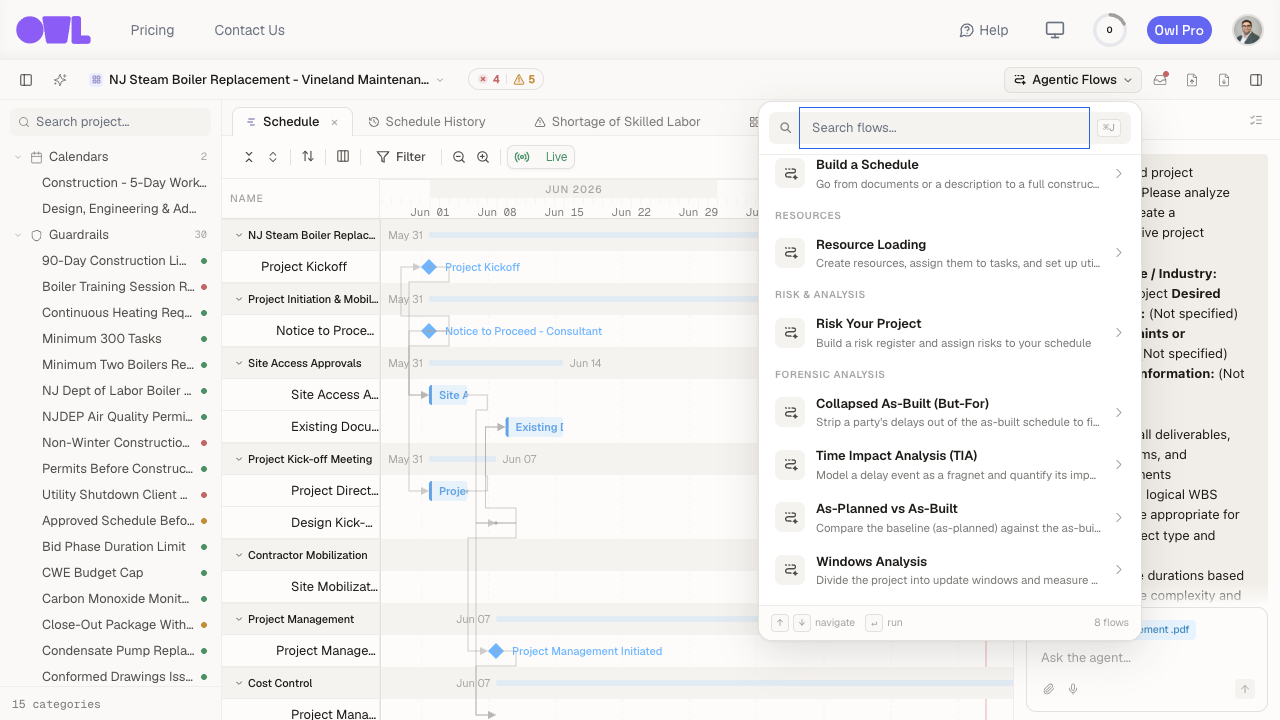 121Open Agentic Flows from the top toolbar (or press ⌘J).2Pick a flow from the Forensic Analysis group — all four delay-analysis methods live here.
-
Describe the situation. A short form asks what happened, who's responsible, and which schedule to analyze against. You can attach evidence (change orders, RFIs, photos, an updated schedule file).
-
Review what Owl proposes. For the modeling methods, Owl proposes how it will model the delay and hands it back for you to check and adjust before anything runs — this is the judgment call, and it's yours.
-
Owl runs it in a safe copy. The analysis happens inside an isolated what-if scenario, so your live schedule is never changed.
-
You get a report. Each flow writes a formal analysis document (it appears under Documents in the project tree) plus the scenario it built, so you can open the schedule and see exactly what it did.
Which method should I use?
| Flow | Use it when… | It answers |
|---|---|---|
| Time Impact Analysis (TIA) | You have a specific event and want to show how much it pushed the finish out. The most common choice, and the usual pick for a live time-extension request. | "How many days did this event add to the completion date?" |
| Collapsed As-Built (But-For) | The job is already finished or well along, and you want to show when it would have finished if the other party's delays hadn't happened. | "When would we have finished but for their delays?" |
| Windows Analysis | You want to walk the whole job period by period, using your saved schedule updates, and see where time was lost. | "Which periods lost time, and what drove each one?" |
| As-Planned vs As-Built | You want a quick, high-level comparison of the original plan against what actually happened. | "What changed versus the plan?" (a screening view) |
If you're not sure, start with Time Impact Analysis — it's the method most owners and courts expect for a single delay event.
Caution: A delay analysis supports your position; it isn't a legal opinion, and it doesn't settle who's contractually entitled to what. As-Planned vs As-Built in particular is a screening view — it shows what changed, not what caused it. For an entitlement argument, use TIA, Collapsed As-Built, or Windows.
What to do next
- Model a specific event — Time Impact Analysis is the step-by-step walkthrough for the most common case.
- Send the report — the analysis document each flow produces can be exported and attached to your submittal.