

As-Planned vs As-Built
This is the simplest of the four flows: it lines up your original plan against what actually happened and measures the difference — total slip and, if you want, activity-by-activity variance. It's a fast way to see what changed. Use it as a screening view to get your bearings before a deeper analysis, or to summarize variance for a status report.
Caution: This method shows what changed, not what caused it. It doesn't prove entitlement or assign responsibility. For a delay claim or time-extension argument, use TIA, Collapsed As-Built, or Windows Analysis instead.
Step 1 — Set up the comparison
Launch As-Planned vs As-Built from Agentic Flows (⌘J → Forensic Analysis).
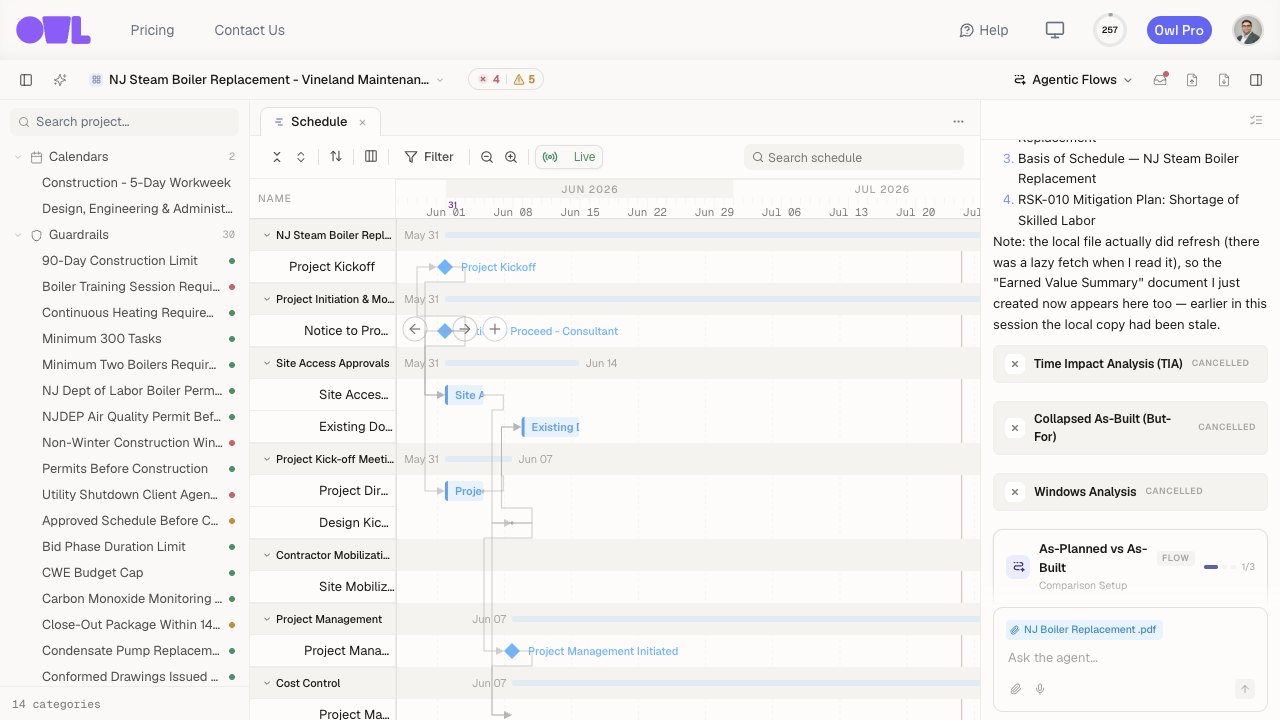 121Launch the flow from Agentic Flows (or ⌘J → Forensic Analysis).2The As-Planned vs As-Built flow card opens on Comparison Setup — pick your schedules and level of detail here.
- As-planned (baseline) schedule — your saved baseline, or upload the original planned schedule.
- As-built schedule — your current schedule, or upload the as-built.
- Level of detail — Project level (overall slip, milestones, and the major variance drivers) or Activity level (a full activity-by-activity start / finish / duration variance table).
Note: As-planned is the plan you started with (the baseline); as-built is what actually happened. The variance is simply the gap between them.
Step 2 — Owl compares and reports
Owl aligns the two schedules, computes the variance at the level you chose, and writes a Variance Report document.
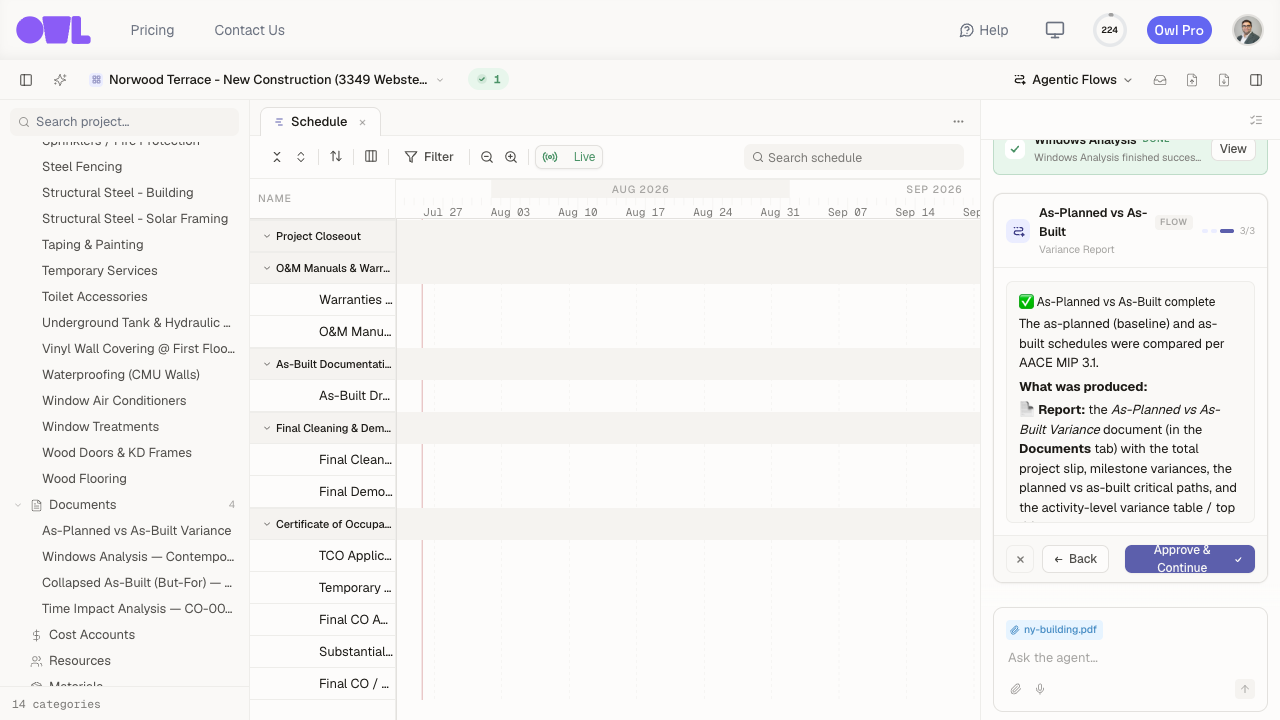 121The flow finishes on the Variance Report step.2Owl writes the As-Planned vs As-Built Variance document to the Documents tab.
The report gives you the total slip, the milestones that moved, and the activities that drifted most from the plan — a clear picture of what changed, ready to drop into a status update or to point you toward where a deeper analysis is worth running.
What to do next
- Go deeper where it matters — once you can see which activities drove the variance, run a TIA or Windows Analysis to establish cause, not just change.
- Set a baseline first — this comparison needs an as-planned baseline. If you don't have one, ask Owl to set your current agreed schedule as the baseline before you start.