

Export your work
When you need your schedule outside Owl PM — to hand to a client, submit to an owner who runs Primavera P6, or drop into a report — export it. Owl writes standard schedule files that other tools can open, so you can round-trip a plan back into P6 or share it as a spreadsheet.
Export the schedule
In the top toolbar, click Export and choose a format.
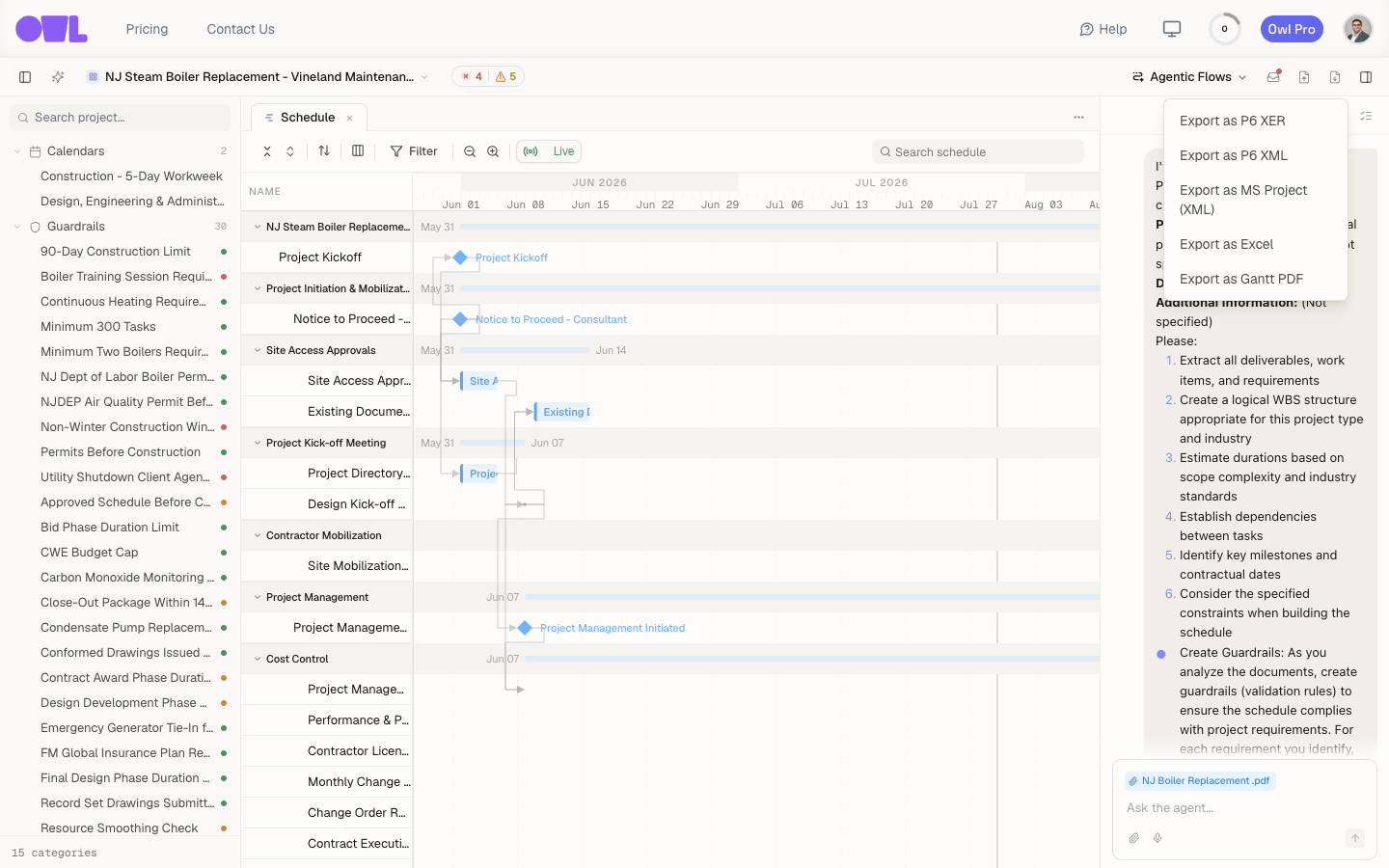 11Click Export in the top toolbar, then pick a format — P6 XER, P6 XML, MS Project XML, or Excel. Each is explained below.
| Format | Use it when |
|---|---|
| P6 XER | You're handing the schedule to someone who runs Primavera P6 — the standard P6 exchange format. |
| P6 XML | You need P6's XML format, for a tool or workflow that expects it instead of XER. |
| MS Project XML | The recipient uses Microsoft Project. |
| Excel | You want the schedule as a spreadsheet — for a report, a review, or a quick share with someone who doesn't run scheduling software. |
The file downloads to your computer, ready to attach or open.
Tip: Exporting as P6 XER and re-importing into Primavera is the way to round-trip a schedule Owl built or revised back into a P6 shop. If the recipient reports an import problem, try P6 XML — some P6 configurations prefer one over the other.
Caution: An export is a point-in-time copy. It doesn't stay linked to your Owl schedule — if you keep editing in Owl afterward, export again to share the current plan.
What to do next
- Share a specific view instead of the whole plan — you can also ask Owl to export just the tasks a particular scenario, diff, or analytics view is showing, rather than the entire schedule.
- Send the numbers, not the file — for a client update, a custom dashboard is often a better format than a raw schedule file.