

Keyboard shortcuts
You can run almost everything in the schedule from the keyboard: step from activity to activity, follow the logic to a predecessor and back, open the details pane, add an activity, link a chain, set durations. Every shortcut is also a command you can find by name, so you don't have to memorize anything to start.
Keys are written the Mac way below, with the Windows and Linux key next to it where it differs. ⌘ on a Mac is Ctrl everywhere else; ⇧ is Shift, ⌥ is Alt, ⌃ is Ctrl. Owl shows each key in your platform's style.
Find any command — the command palette (⌘K)
Press ⌘K (Ctrl+K) anywhere in a project to open the command palette. Start typing what you want to do — link, duration, started — and press Enter to run it.
The palette lists every command, including the ones that have no key. Mark as started, Set duration…, Move to WBS…, Assign resource… and New scenario are only a few letters away even though they have no shortcut.
The palette reads your selection. Select three activities and the commands say what they will do to them — Link 3 activities, Set duration of 3 activities…, Remove 1 link between 3 activities — and commands that don't apply to what you've selected don't show up.
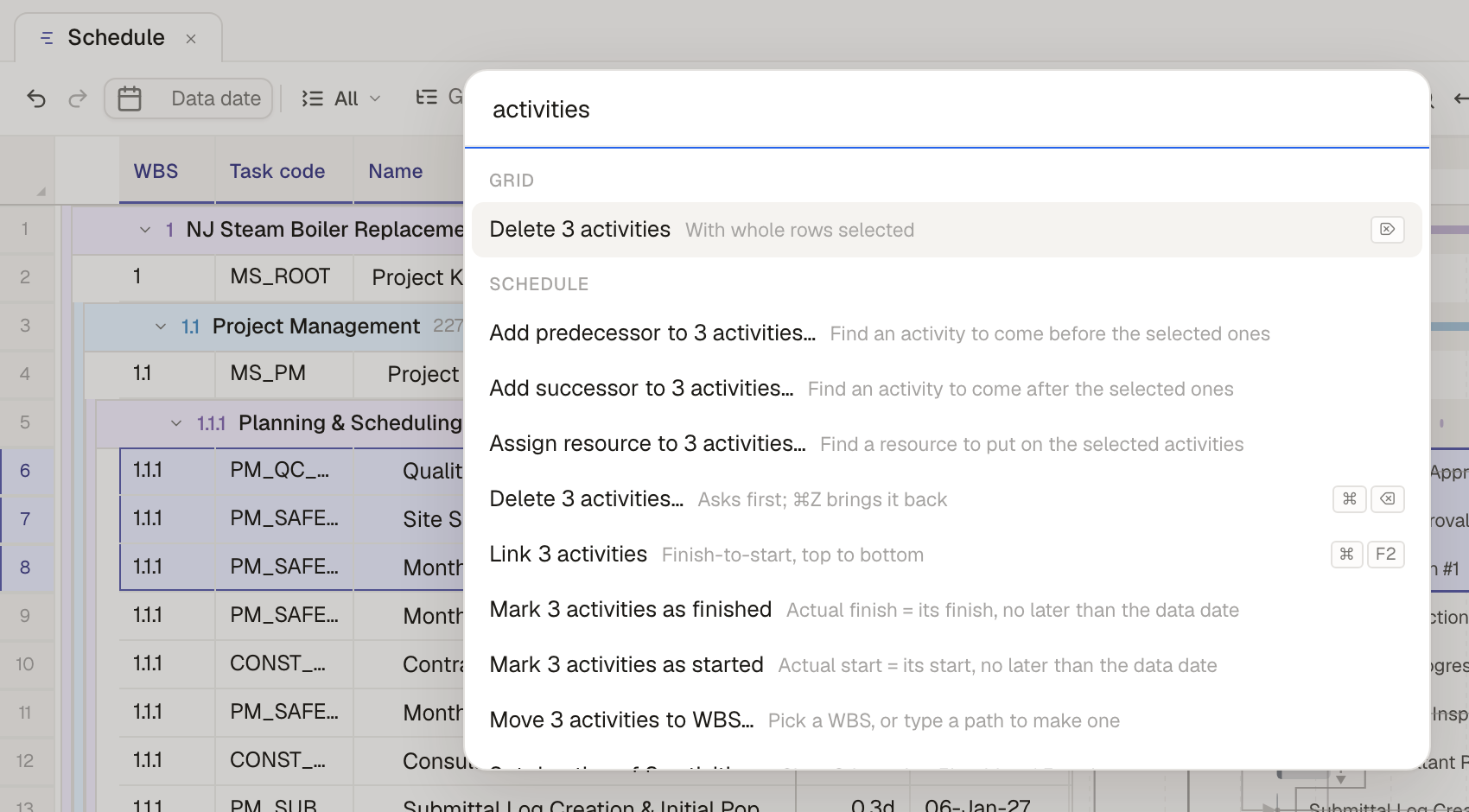 12341Type a few letters of what you want to do.2The titles count your selection — Link 3 activities, Mark 3 activities as finished.3A short hint says what the command does.4The command's keys, so you learn them as you go.
Tip: Right-click a selection in the schedule for the same commands as a menu. A right-click runs the same command as the key and the palette, with the same selection-aware titles.
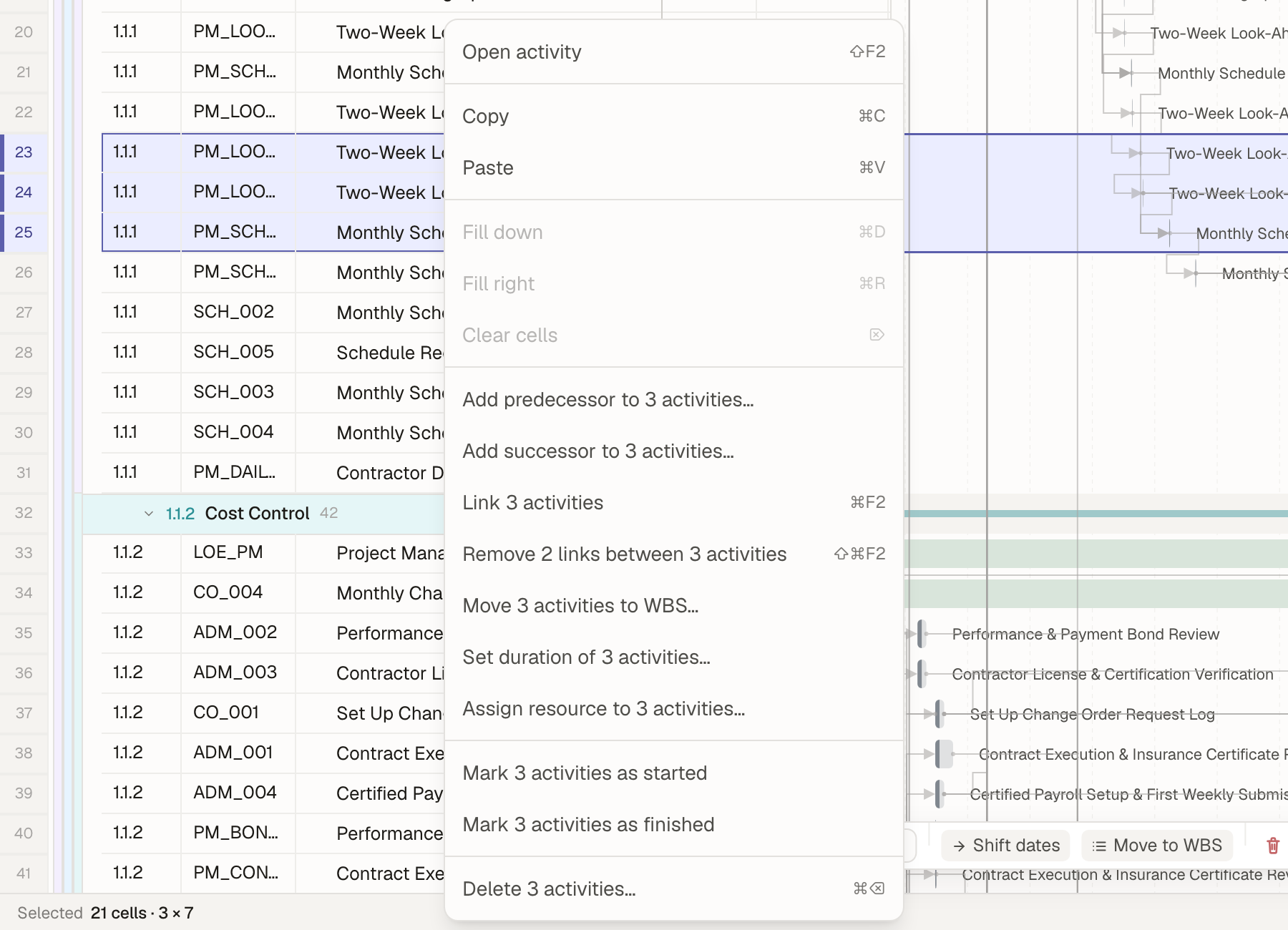 121Three activities selected…2…and the menu offers what you can do to all three, with each command's keys on the right.
See every key — the shortcut sheet (⌘/)
Press ⌘/ (Ctrl+/) or ? to open the Keyboard shortcuts sheet. It lists every key, grouped the same way as the tables below. Commands you can't use right now — Fill down with one row selected, for example — are greyed out.
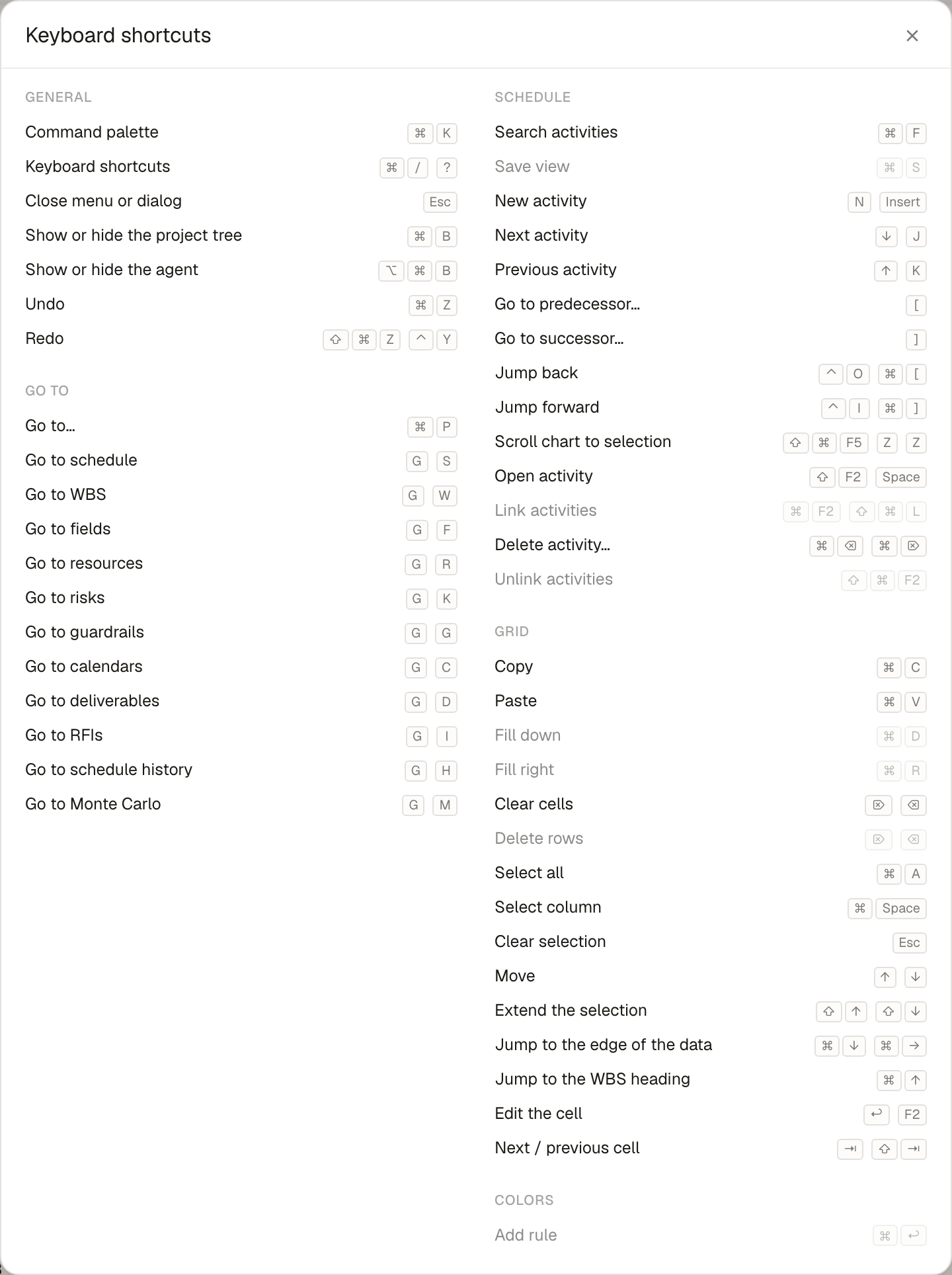 12341General: the palette, this sheet, Esc, the side panels, undo and redo.2Go to: ⌘P to find anything by name, and G then a letter for each page.3Schedule: moving, following links, opening, linking, deleting.4Grid: copy, paste, fill, select, and the keys that move around and edit cells.
Esc closes the top thing only
Esc closes the menu, picker or dialog on top and leaves the rest open. Press it again to close the next one down. With nothing open, Esc in the grid clears the selection.
General
| Command | Mac | Windows / Linux |
|---|---|---|
| Command palette | ⌘K | Ctrl+K |
| Keyboard shortcuts | ⌘/ or ? | Ctrl+/ or ? |
| Close menu or dialog (the top one only) | Esc | Esc |
| Undo | ⌘Z | Ctrl+Z |
| Redo | ⇧⌘Z or ⌃Y | Ctrl+Shift+Z or Ctrl+Y |
| Show or hide the project tree | ⌘B | Ctrl+B |
| Show or hide the agent | ⌥⌘B | Ctrl+Alt+B |
Undo and redo step through your own changes, including the ones Owl made for you, and never a teammate's. See Schedule history and undo.
Opening the agent with ⌥⌘B puts the cursor in its message box, so you can type straight away.
Go anywhere in the project
Press ⌘P (Ctrl+P) and type a name to open anything in the project tree: a page such as Resources or Simulations, or one item by name, such as a resource, a risk, a guardrail, a saved view or a dashboard. It opens the way a click in the tree does. To find an activity, use ⌘F in the schedule.
G then a letter goes straight to a page:
| Page | Keys |
|---|---|
| Schedule | G then S |
| WBS | G then W |
| Fields | G then F |
| Resources | G then R |
| Risks | G then K |
| Guardrails | G then G |
| Calendars | G then C |
| Deliverables | G then D |
| Agent questions | G then I |
| Schedule history | G then H |
| Simulations | G then M |
Moving through the schedule
These work when the schedule has focus (click a row first).
| Command | Mac | Windows / Linux |
|---|---|---|
| Next activity | J | J |
| Previous activity | K | K |
| Go to predecessor… | [ | [ |
| Go to successor… | ] | ] |
| Jump back | ⌃O, ⌘[ or ⌥← | Ctrl+O, Ctrl+[ or Alt+← |
| Jump forward | ⌃I, ⌘] or ⌥→ | Ctrl+I, Ctrl+] or Alt+→ |
| Scroll chart to selection | Z then Z, or ⇧⌘F5 | Z then Z, or Ctrl+Shift+F5 |
| Search activities | ⌘F | Ctrl+F |
Step from activity to activity — J and K
J selects the next activity and K the previous one. WBS rows are skipped, so you land on work, not on headings. With the details pane open it follows along, so J, J, J reads through the schedule one activity at a time.
In the grid, ↓ and ↑ move the cell cursor one row, headings included.
Follow the logic — [ and ]
Press [ on an activity to see its predecessors, or ] to see its successors. A picker lists them with the relationship and lag (FS +2.5d). Type to narrow the list, then press Enter to go to that activity. The schedule scrolls to it and selects it, even if it's in a collapsed WBS.
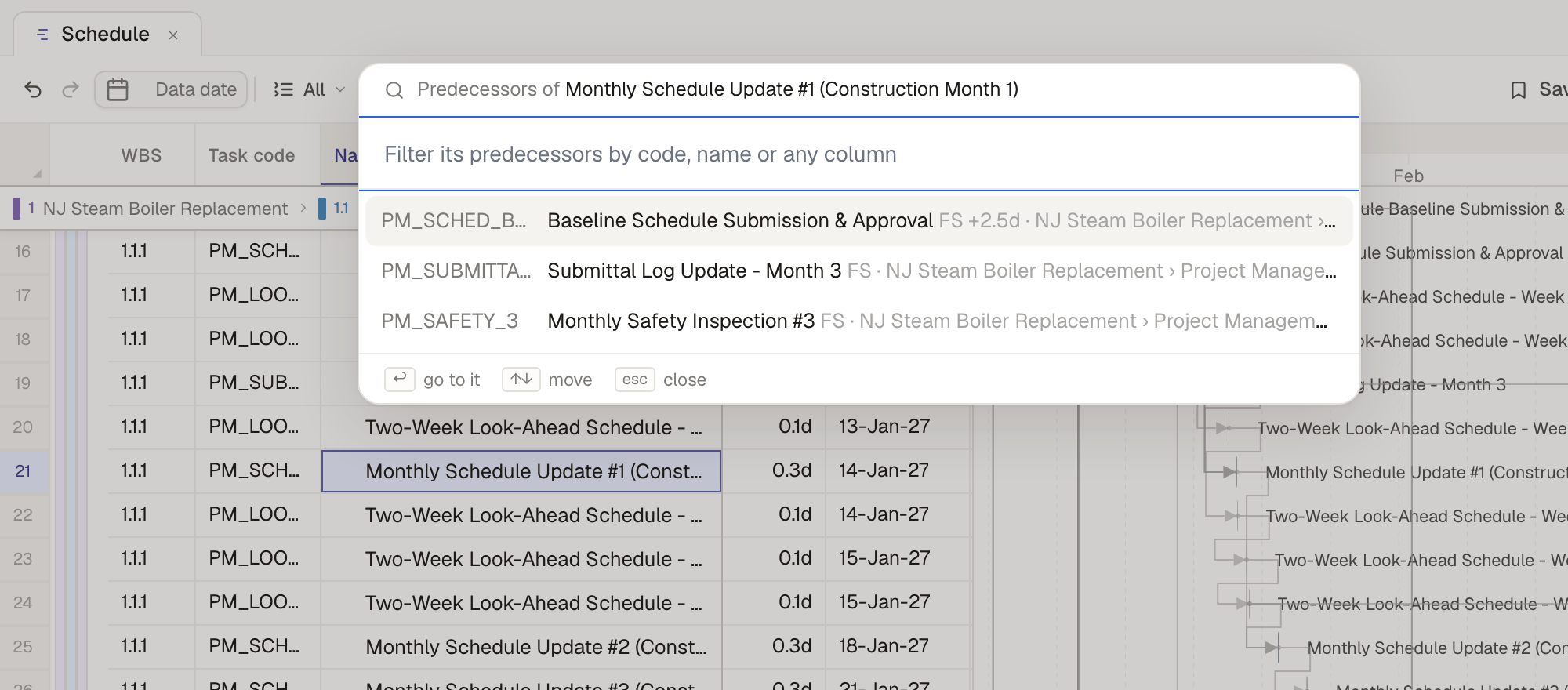 12341The selected activity. Press [ …2…to list its predecessors (] lists successors).3Each predecessor with its code, the link type and lag, and where it sits in the WBS.4Enter goes to it, ↑ ↓ move, Esc closes.
Jump back and forward — ⌃O and ⌃I
Every jump along a link is remembered. ⌃O (also ⌘[, ⌥←, or your mouse's back button) takes you back to the activity you jumped from; ⌃I (also ⌘], ⌥→, or the mouse's forward button) goes forward again. Chase a driving path five predecessors deep, then come straight back.
Note: ⌃O and ⌃I use the Control key on a Mac too.
Bring the bar into view — Z Z
You've scrolled the chart to next spring and the activity you're on is in June. Press Z twice to scroll the chart to it. With several activities selected, the chart shows them all.
Working on activities
| Command | Mac | Windows / Linux |
|---|---|---|
| Open activity (details pane) | Space or ⇧F2 | Space or Shift+F2 |
| New activity | N or Insert | N or Insert |
| Link activities | ⌘F2 or ⇧⌘L | Ctrl+F2 or Ctrl+Shift+L |
| Unlink activities | ⇧⌘F2 | Ctrl+Shift+F2 |
| Delete activity… | ⌘⌫ | Ctrl+Delete |
| Add predecessor… / Add successor… | palette or right-click | palette or right-click |
| Set duration… | palette or right-click | palette or right-click |
| Move to WBS… | palette or right-click | palette or right-click |
| Assign resource… | palette or right-click | palette or right-click |
| Mark as started / Mark as finished | palette or right-click | palette or right-click |
| New scenario | palette | palette |
- Space opens the details pane on the selected activity, and Space again closes it.
- N opens a new activity under the selected row's WBS. If an activity is selected, the new one comes right after it, with a finish-to-start link from the selected activity already filled in.
- Link chains the selected activities finish-to-start, top to bottom. Unlink removes the links between them. The palette says how many it will remove first.
- Delete asks before deleting and tells you about work that waits on what you're removing. ⌘Z brings it back.
- Set duration… takes a value for every selected activity: 8h or 2d sets it, +5h adds to each, ×1.5 scales each.
- Mark as started sets the actual start to the planned start, but never later than the data date. Mark as finished does the same for the actual finish.
- Move to WBS… lets you pick a WBS, or type a path to create one.
For changes with a rule behind them, ask instead:
Grid keys
The grid works like a spreadsheet.
| Command | Mac | Windows / Linux |
|---|---|---|
| Edit the cell | Enter or F2 | Enter or F2 |
| Move | ← → ↑ ↓ | ← → ↑ ↓ |
| Next / previous cell | Tab / ⇧Tab | Tab / Shift+Tab |
| Extend the selection | ⇧↑ / ⇧↓ | Shift+↑ / Shift+↓ |
| Jump to the edge of the data | ⌘↓ / ⌘→ | Ctrl+↓ / Ctrl+→ |
| Jump to the WBS heading | ⌘↑ | Ctrl+↑ |
| Copy / Paste | ⌘C / ⌘V | Ctrl+C / Ctrl+V |
| Fill down / Fill right | ⌘D / ⌘R | Ctrl+D / Ctrl+R |
| Clear cells | Delete or ⌫ | Delete or Backspace |
| Delete rows (whole rows selected) | Delete or ⌫ | Delete or Backspace |
| Select all | ⌘A | Ctrl+A |
| Select column | ⌘Space | Ctrl+Space |
| Clear selection | Esc | Esc |
Heads up: Typing a letter over a cell doesn't start editing it. Letters are commands in the schedule (N adds an activity, J moves down), so press Enter or F2 to edit a cell, then type.
Fill down copies the top cell of the selection into the cells below it; Fill right copies the left cell across. Delete clears the selected cells; with whole rows selected (click the row numbers), it deletes those activities instead.
What to do next
- Learn the schedule's layout — Work in the schedule covers the toolbar, the grid, the chart and the details pane these keys drive.
- Shape what you see — Shape the schedule covers columns, filters, grouping and saved views.