
Track progress and collaborate
Once a schedule is built and sound, the job changes from planning the work to running it: recording what's actually started and finished, and keeping everyone on the project on the same page. Owl PM does both at the level of the individual task — open a task, stamp its real dates, leave a comment, and your teammates see it right away.
Note: Progress and comments live on each task, not on the plan as a whole. Marking a task started or complete records what actually happened against your schedule — it doesn't rewrite the plan underneath.
Open a task's detail page
Double-click any task — its bar in the Gantt or its name in the list — to open its detail page. It slides in from the right and holds everything about that one task: its planned dates, its actual dates, its dependencies, and its full comment history.
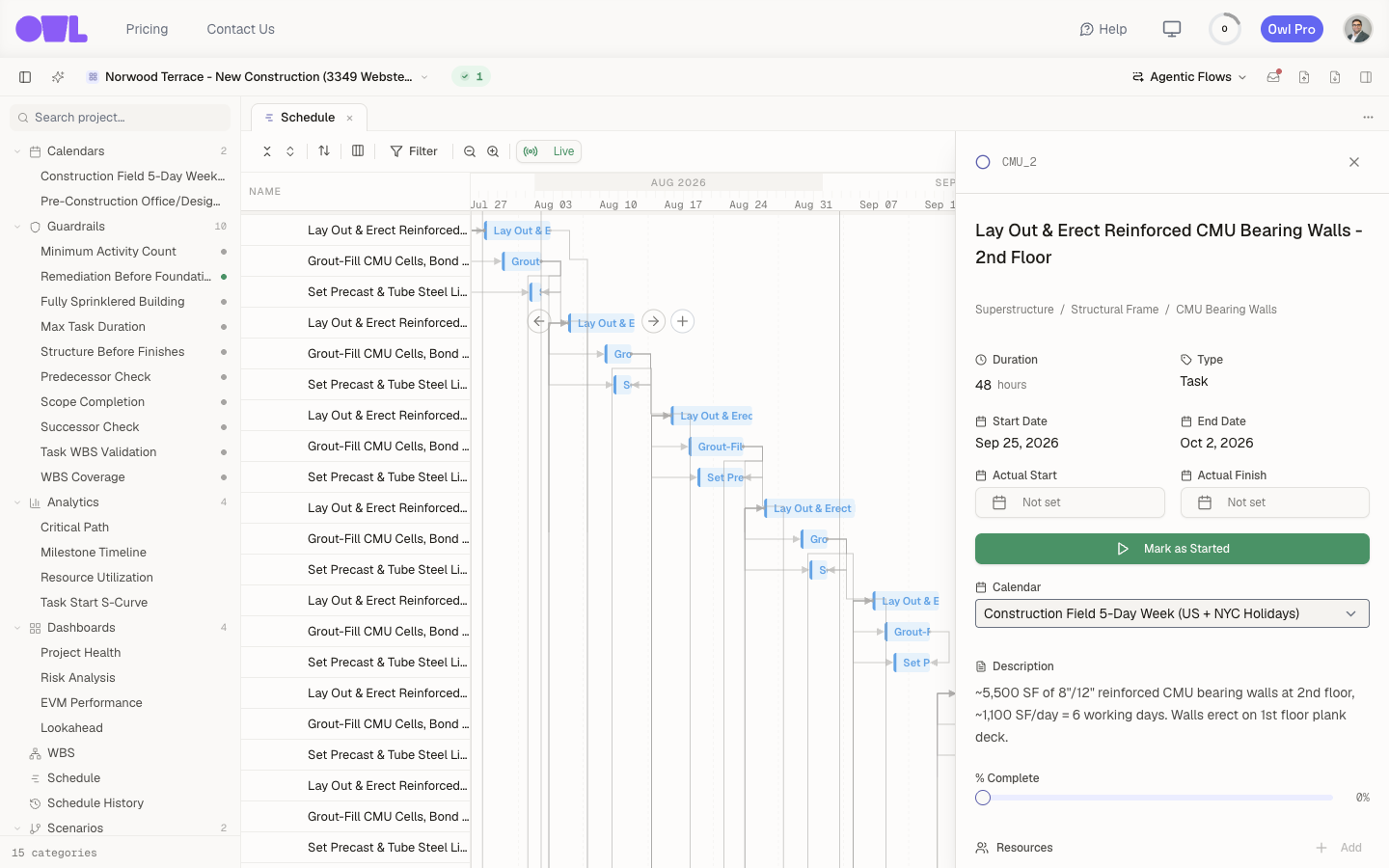 1231Double-click a task — its bar or its name — to open its detail page here.2Actual Start and Actual Finish — the dates work really began and ended, kept separate from the planned dates above.3The status button changes with the task's state: Mark as Started → Mark as Completed → Completed. In this example, clicking on Mark as Started would set the Actual Start to right now.
Mark a task started or completed
Under the actual dates is a single button that reflects exactly where the task stands. Clicking it stamps today's date — no typing required:
- Not started yet → Mark as Started (green). Click it to record today as the actual start.
- Started but not finished → Mark as Completed. Click it to record the actual finish.
- Both recorded → the task simply reads Completed.
If work actually started or finished on a different day, type the exact date straight into the Actual Start or Actual Finish field instead.
Leave a comment on a task
Scroll to the bottom of the task's detail page to the Activity feed. It lists every comment and status change on that task — newest last — each tagged with who did it and when. Type in the Add a comment… box to flag a blocker, note a field condition, or ask a question.
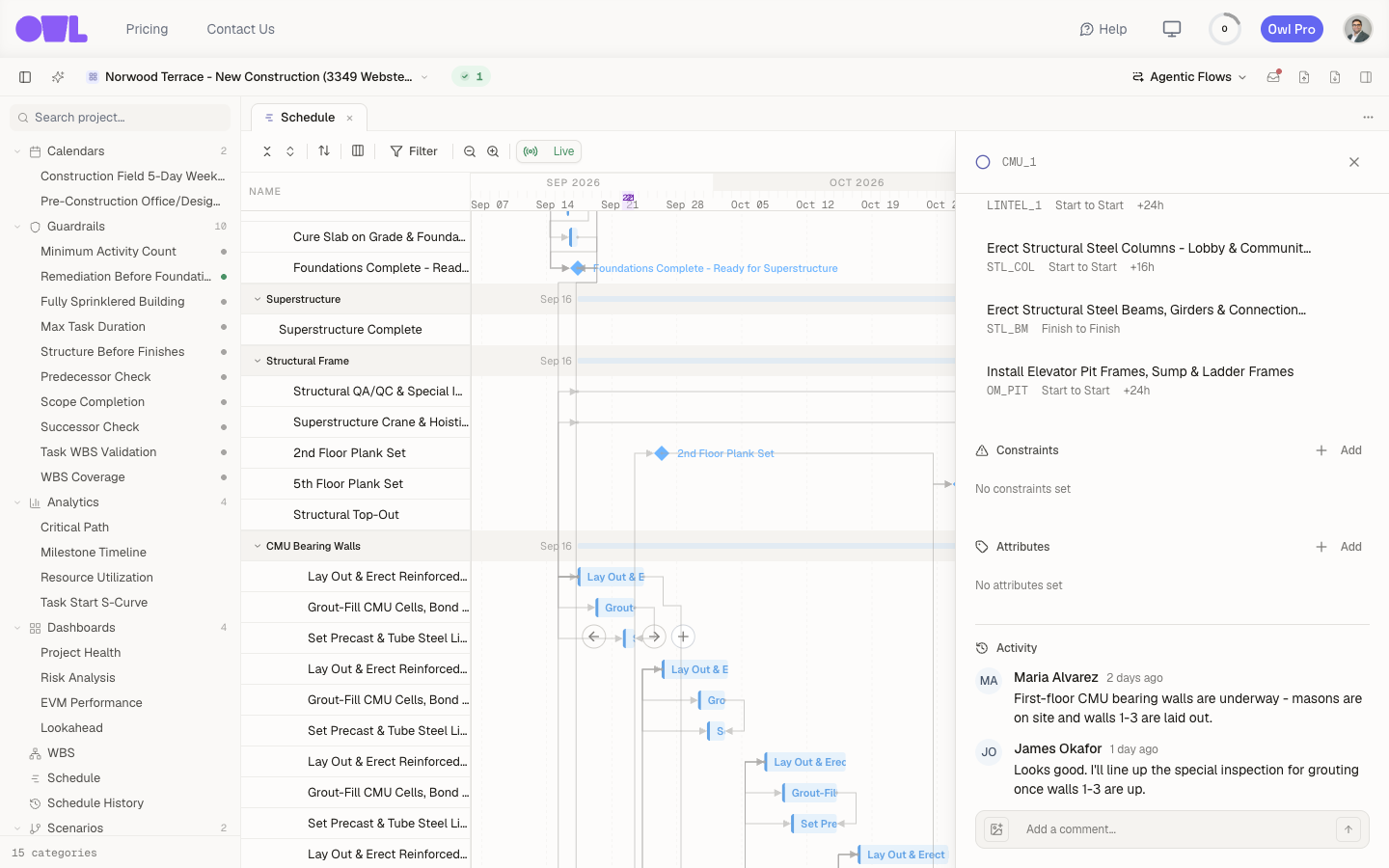 121The Activity feed — every comment and status change on this task, newest at the bottom, with who did it and when.2Add a comment to flag a blocker or ask a question — your teammates see it in their Inbox.
See what your team is doing — the Inbox
When a teammate comments on a task or changes its status, it lands in your Inbox. Open it from the Inbox button in the top toolbar; it opens as its own tab.
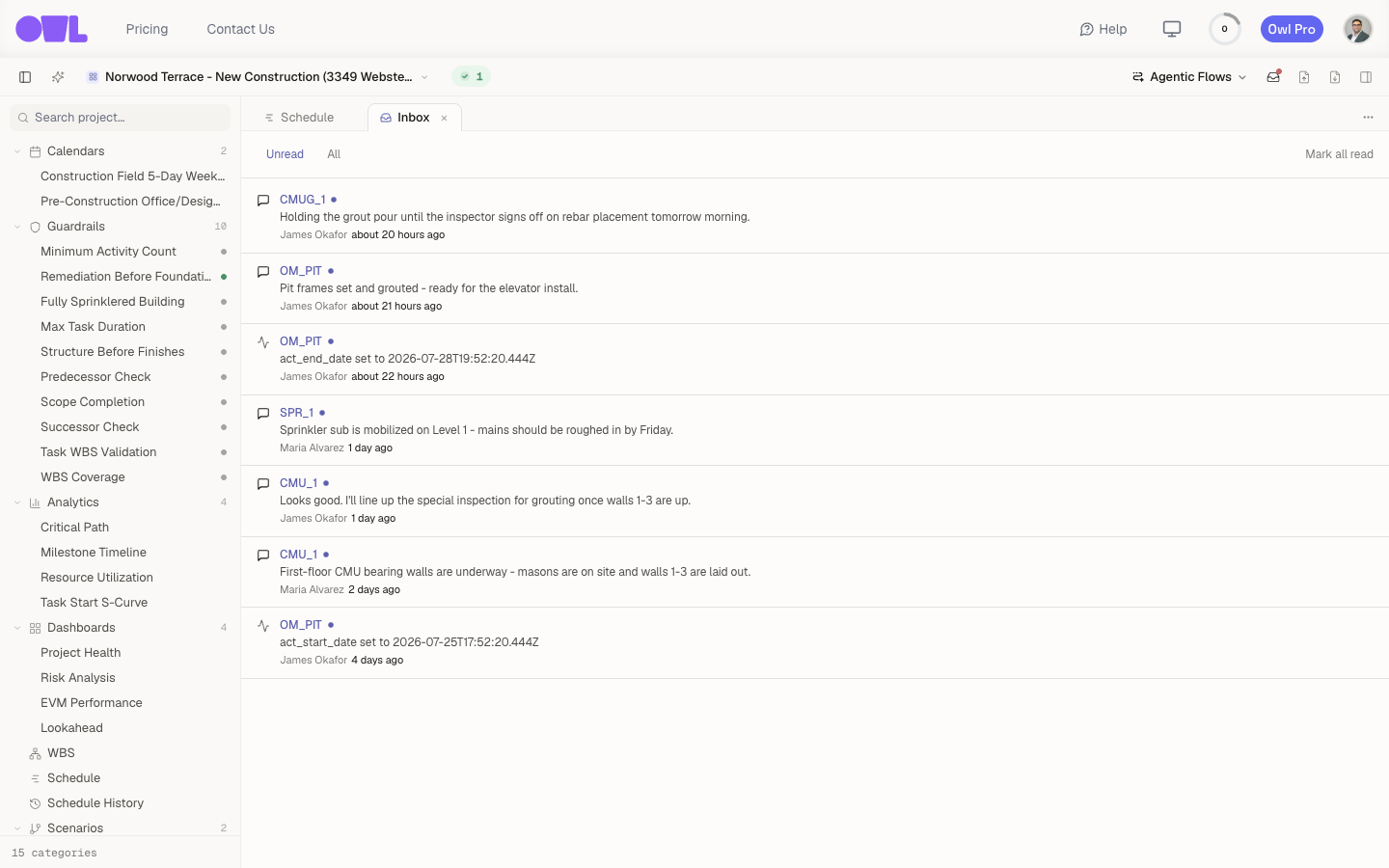 12341The Inbox button in the toolbar opens the Inbox.2Filter to Unread or All.3Each row: the task, the comment or status change, and who made it. A dot marks it unread — click any row to jump straight to that task.4Mark all read clears the unread dots.
Each row tells you the task, the update, and the person behind it. Unread items carry a dot; click a row to open that task, or Mark all read to clear them all at once. Switch between Unread and All to catch up on recent history.
What to do next
- Keep the plan honest — as progress rolls in, compare the actuals against the plan on the Project Health dashboard to see whether you're tracking ahead or behind.
- Explain a slip — when actuals drift from the plan, the delay-analysis workflows turn what happened into a report you can submit.