

Schedule history and undo
Every change to your schedule is saved automatically. Owl building the plan, an imported Primavera P6 or Microsoft Project file, a status update, a duration you nudged by hand — each one is written to the Schedule History as a snapshot. That history is two things at once: a complete record of how the plan got to where it is, and an undo button that can roll the whole schedule back to any earlier point in a single click.
Note: You never have to save. Snapshots are automatic — every edit creates one — so the history is always complete and you can always step back.
Open the Schedule History
In the project tree, click Schedule History. It opens as its own tab.
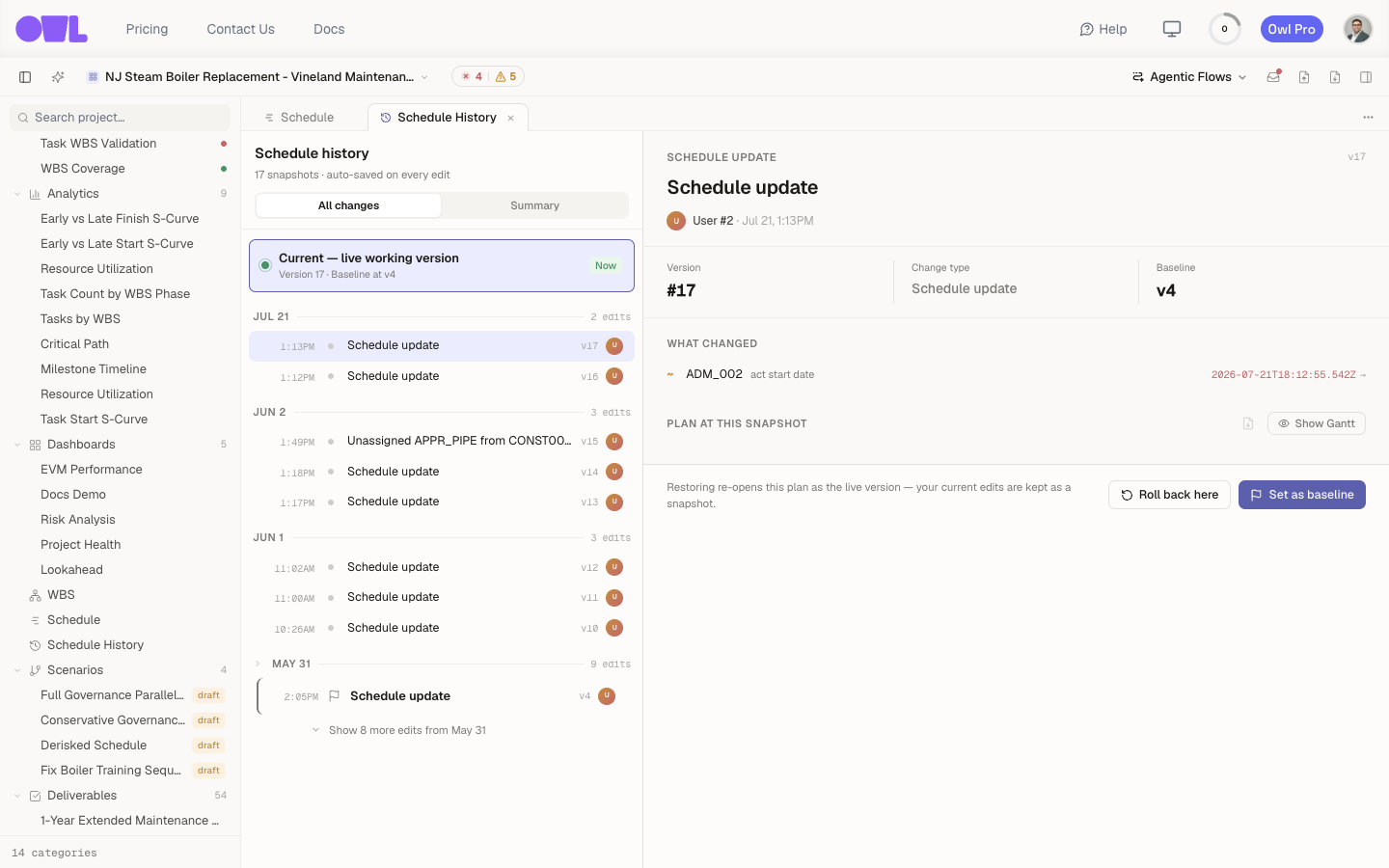 12341Open Schedule History from the project tree.2Every edit is auto-saved as a snapshot — nothing to save by hand.3The timeline — newest first, grouped by day. Each row is one snapshot: the time, a summary of what changed, its version number, and who made it.4Roll back here — undo the plan to this snapshot (more below).
Read the timeline
The left side is the timeline, newest at the top and grouped by day. Each snapshot shows four things:
- When it happened.
- What changed — a plain-language summary ("Schedule update", "Unassigned APPR_PIPE from CONST003", "Duration change", and so on).
- Which version it is (
v17,v16, …). Versions count up, so a higher number is more recent. - Who made it — you, a teammate, or Owl when the agent did the work.
The very top row, Current — live working version, is where you are now. Below it, the whole story of the plan unspools: the snapshots from when Owl first built it or you imported it, every status update as work got marked started and complete, and every manual edit to durations, dependencies, or resources — each tagged with its change type.
Use the All changes / Summary toggle to switch between every snapshot and just the significant ones (baselines, restores, big rebuilds), which is handy on a plan with hundreds of small edits.
See what a snapshot changed
Click any snapshot to open its detail on the right: its version, its change type, and a What changed list of the exact fields that moved. Click Show Gantt to render the entire schedule exactly as it stood at that moment — the fastest way to see what the plan looked like at any point in its history.
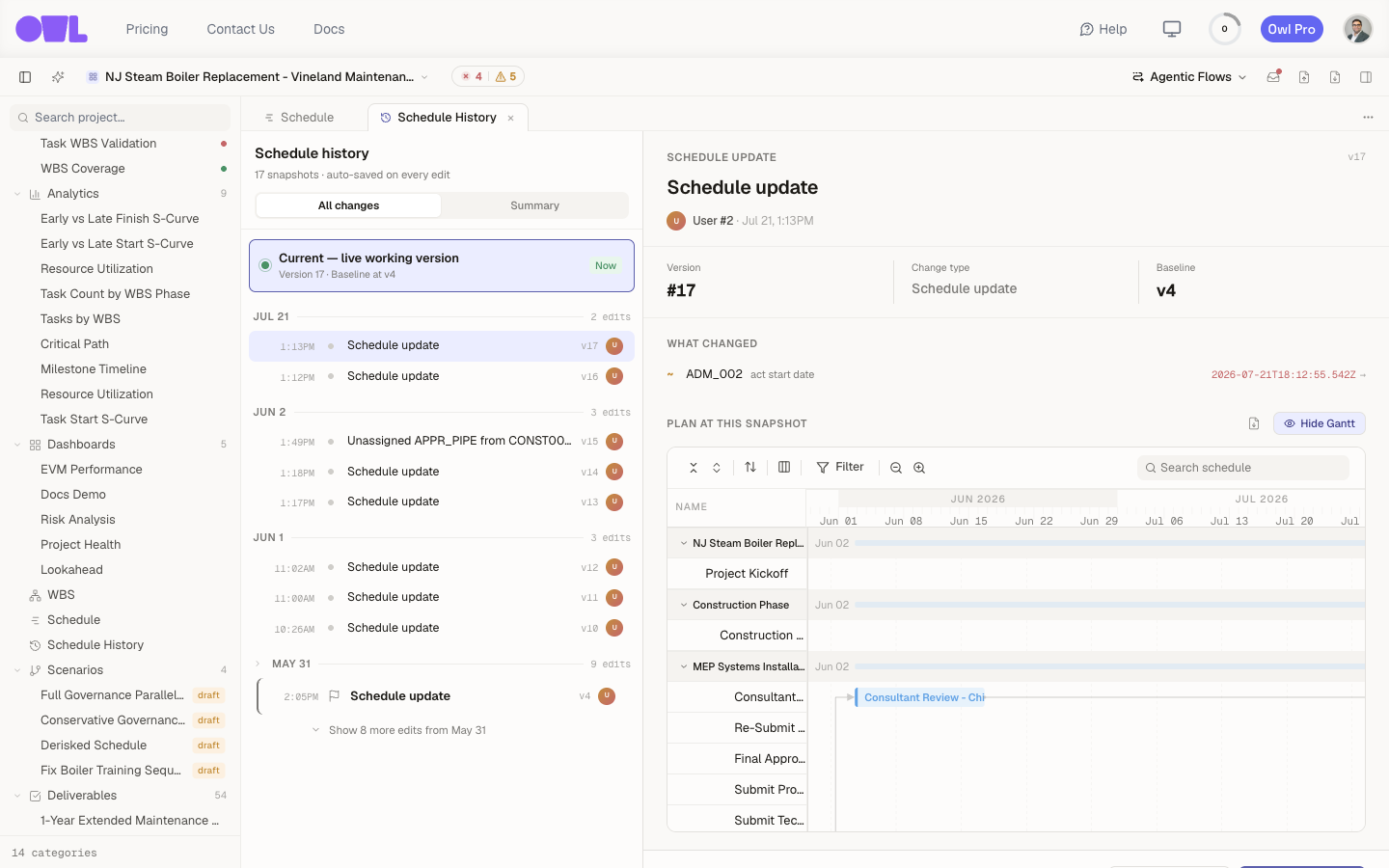 121Each snapshot's detail — its version, change type, and the exact fields that changed (here, an actual-start date — a status update).2Show Gantt rebuilds the full schedule as it looked at that snapshot, so you can compare the plan across time.
Undo — roll back to any snapshot
Found a change you want to reverse — a bad bulk edit, an import that went sideways, a scenario you applied by mistake? Select the snapshot from before it and click Roll back here. Owl re-opens that plan as your live working version.
Rolling back is safe and reversible: your current edits aren't thrown away — they're kept as their own snapshot at the top of the history, so you can always roll forward again. Nothing is ever lost.
Related: Set as baseline (next to Roll back) pins a snapshot as your plan of record — the plan that EVM and variance analysis measure everything against.
What to do next
- Record progress — the status updates you make in Track progress and collaborate each land here as a snapshot.
- Compare against the plan of record — set a baseline, then watch cost and schedule drift on the EVM dashboard.