

Share a project
A project starts out reachable by exactly one person: you. Sharing it is how everyone else gets in — a colleague who needs to edit the schedule, a client who should only ever read it, a consultant who should see four documents and nothing else.
All of that happens on one page: who can open this project, and where it lives. Click Share in the project toolbar (or the gear beside it — both open the same page) to get there.
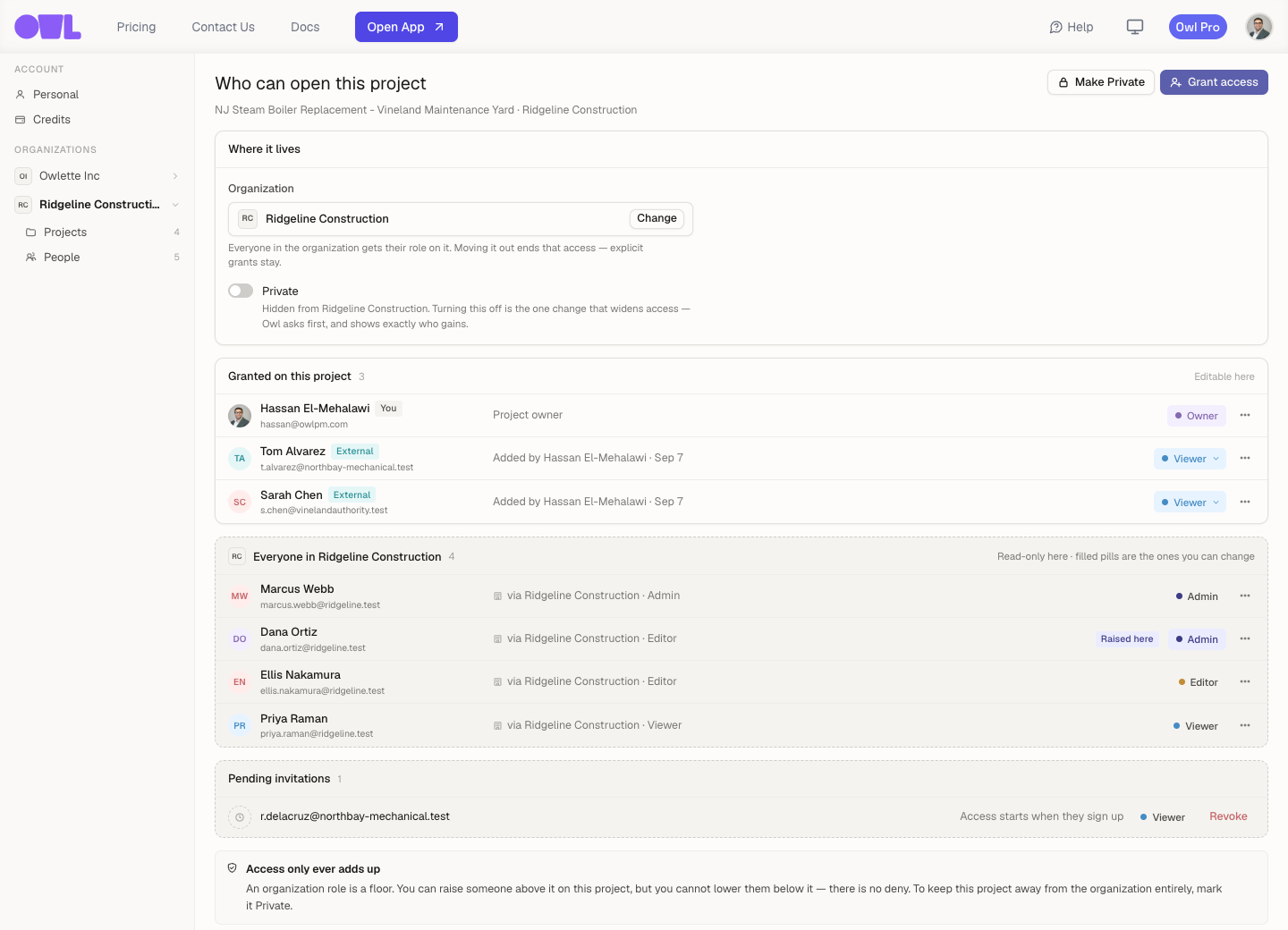 1234561Grant access — add somebody by email and pick their role.2Where it lives — the organization the project belongs to, and the Private switch that keeps it out of that organization's sight.3Granted on this project — people whose access is about them. Editable here: change a role, remove somebody. External marks anyone outside the owning organization.4Everyone in the organization — read-only, because their access is the organization's doing, not this project's.5Raised here — Dana is an Editor in the organization and an Admin on this project. You can raise somebody above their organization role; you cannot lower them below it.6Pending invitations — sent to an address with no Owl account yet. Revoke cancels one before it is used.
Note: Access is granted on the project, not on a single schedule or tab. Anyone you add can reach everything in the project unless you narrow them down with per-item exceptions.
Grant someone access
Click Grant access, type one email address — or paste a whole list of them — pick a role, and send.
What happens next depends on whether the address already belongs to an Owl account:
- They already use Owl. They get access straight away and an email telling them the project was shared with them.
- We don't know that address. It becomes a pending invitation with a signup link. The access starts the moment they sign up — you don't have to come back and add them again.
Pending invitations sit in their own group on the access page, marked "Access starts when they sign up", and you can Revoke any of them before they're used.
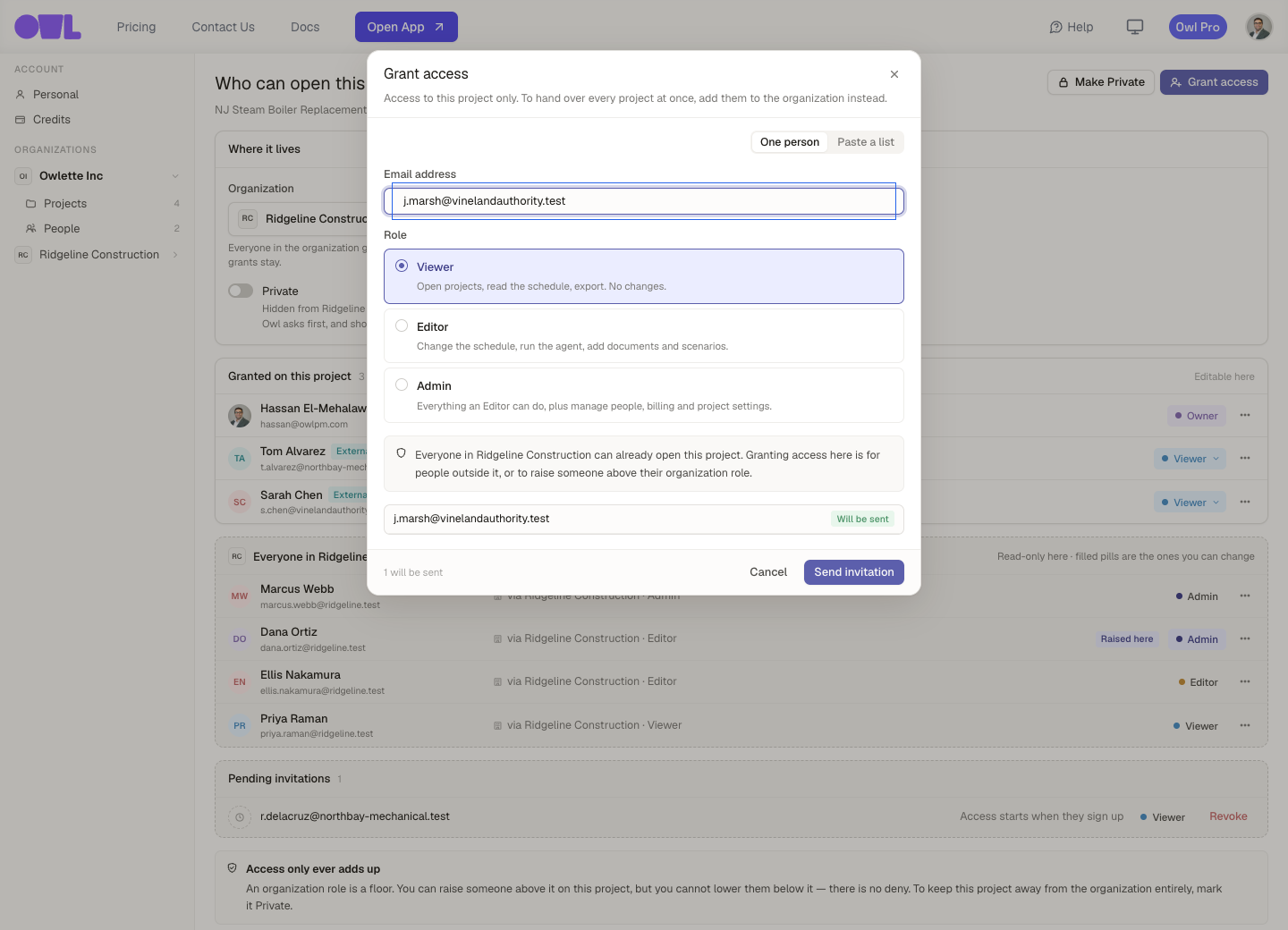 123451One person or Paste a list — the same dialog takes a single address or a whole block of them.2The email address. Somebody who already uses Owl joins straight away.3The role they get, with what it means spelled out. The Owner role isn't handed out here — it's transferred.4Owl says when the people you're adding can already open the project through the organization, so you don't send an invitation for access they have.5Send invitation — one per address.
Tip: Adding someone who is already in the project's organization isn't an invitation — they can already open it. What you want there is to raise their role, which you do on their row.
The four roles
Every person on a project holds one role. The same four roles are used for organizations, so a role means the same thing everywhere in Owl.
| Role | What they can do |
|---|---|
| Viewer | Open the project, read the schedule, export. No changes. |
| Editor | Change the schedule, run the agent, add documents and scenarios. |
| Admin | Everything an Editor can do, plus manage people and project settings. |
| Owner | Full control. Cannot be removed or demoted. |
You can change somebody's role at any time from the dropdown on their row, or remove them entirely. The owner row has no remove and no role picker — ownership is the reason they can open the project at all.
Two groups: granted, and inherited
The access page splits people into two groups, and the split is the point.
Granted on this project is everyone whose access is about them: the owner, a client, an outside consultant, anyone you added by email. These rows are editable — change a role, remove a person.
The second group is named after the organization — Everyone in Ridgeline Construction — and holds everyone who can open the project because of the organization it lives in. These rows are read-only. There's no Remove on them, because their access doesn't come from this project: you'd be taking away something the organization gave them. To keep one project away from the organization, mark it Private; to take somebody's access away for good, remove them from the organization.
You can raise an inherited person on this project: an organization Editor can be made an Admin here. You cannot lower them below their organization role.
Somebody outside the owning organization — a client, a subcontractor — carries an External badge, because "why can this person see this?" has a different answer for them.
Where the project lives
The same page carries the Where it lives card, because which organization a project belongs to is another statement about who can open it.
- Personal — no organization. Only you and the people you granted access to directly.
- In an organization. Everyone in that organization gets their organization role on it, on top of anyone granted here.
Click Change to move the project. Moving it into an organization hands that whole organization a role on it; moving it out ends that access. Explicit grants survive the move either way. Owl states exactly who gains or loses access and asks before it does anything.
Private: keeping one project out of the organization's sight
A project inside an organization can be marked Private. Nobody inherits access while Private is on — the only people who can open it are the ones granted on it directly.
Turning Private off is the one change that widens access, so Owl names the people who are about to gain it rather than counting them, and asks first.
Important: Private is per project, all-or-nothing. It hides the project from the whole organization; it can't hide it from one person.
Give someone access to specific items only
A project role is the default for everything in the project. On top of that you can grant somebody extra access to particular kinds of data — "Editor on all Documents", or "Edit on these three scenarios and nothing else."
Click a person's row on the access page to open their page, which holds their project role and a list of Exceptions by data type.
For each data type you pick a level:
| Level | What it allows |
|---|---|
| View | View and export these items. |
| Edit | Change these items. |
| Manage | Edit, plus manage access to these items. |
…and a scope: All of that type, or Specific items picked from a checklist.
These data types can carry an exception:
- Scenarios, Resources, Documents, Analytics and Risks — many per project, so an exception can cover the whole type or individual items.
- Schedule, Comments and Schedule history — one per project, so an exception always covers the whole thing; there's nothing individual to pick.
Everything else — the WBS, calendars, guardrails, cost accounts — is governed by the project role alone.
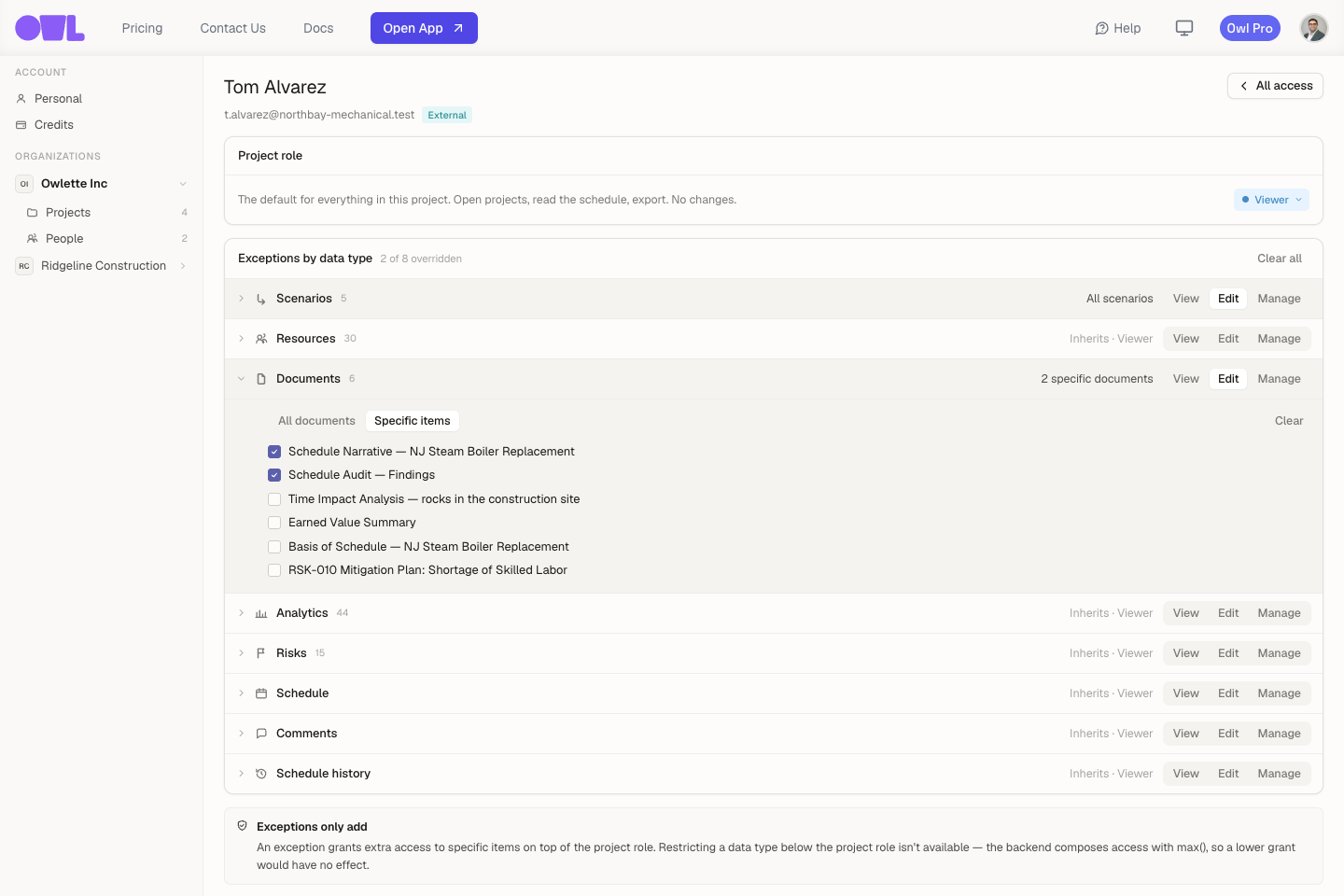 123451The project role — the default for everything in this project. Tom is a Viewer.2The level for this data type: View, Edit or Manage. Set here, it overrides the project role for documents only.3All documents or Specific items — the scope of the exception.4Tick the individual items. Two of the six documents are shared with Tom at Edit; the other four aren't.5Everything untouched reads Inherits · Viewer — no exception, so the project role applies.
Important: Exceptions only ever add. Giving somebody View on Documents when they're already an Editor on the project changes nothing — it can't take the Editor access away. If you need somebody to see less, give them a lower project role and add exceptions back up from there.
Clear removes one exception; Clear all removes every exception for that person and puts them back on their project role.
When somebody can't open a project
Open a link to a project you don't have access to and Owl says so, with a Request Access button. Clicking it emails the project's owner and admins, along with any message you typed.
An owner or admin then grants the access from the project's access page in the usual way — there's no separate approval queue to learn.
What to do next
- Share everything at once — if the same firm should reach all of your projects, put them in an organization instead of adding people project by project.
- Understand the rules — How access works explains why access only ever adds up, and what to do when someone can see something you'd rather they didn't.
- Work together on the plan — once people are in, track progress and collaborate covers task comments and the Inbox.