

Find issues with your schedule
A schedule that looks fine on the Gantt can still be wrong underneath: a task scheduled in a season it's not allowed to run in, a phase that starts before its permits are approved, an activity with no predecessor so it floats loose in time. Owl PM watches for these with guardrails — automated checks that re-run every time the schedule changes and flag anything that breaks a rule.
This page is about seeing what's wrong. Once you know, Fix issues with your schedule covers clearing the failures.
Note: A guardrail is a rule about your schedule that Owl checks automatically — "physical boiler work only happens April through October," "every task has a predecessor," "no phase runs longer than its contract limit." Owl writes most of them for you from the documents and constraints you gave it, and you can ask for more at any time. Guardrails are also how you steer Owl: a rule you set is one Owl works to satisfy on every future change, whether that change was made by you or by Owl.
The two places issues show up
You never have to go looking for problems — Owl surfaces them in two spots:
- The status pills, top of the workspace, give you the one-glance health of the whole schedule: a red count of errors and an amber count of warnings.
- The Guardrails list in the project tree shows every rule with a colored status dot, so you can see which specific checks are passing and which need attention.
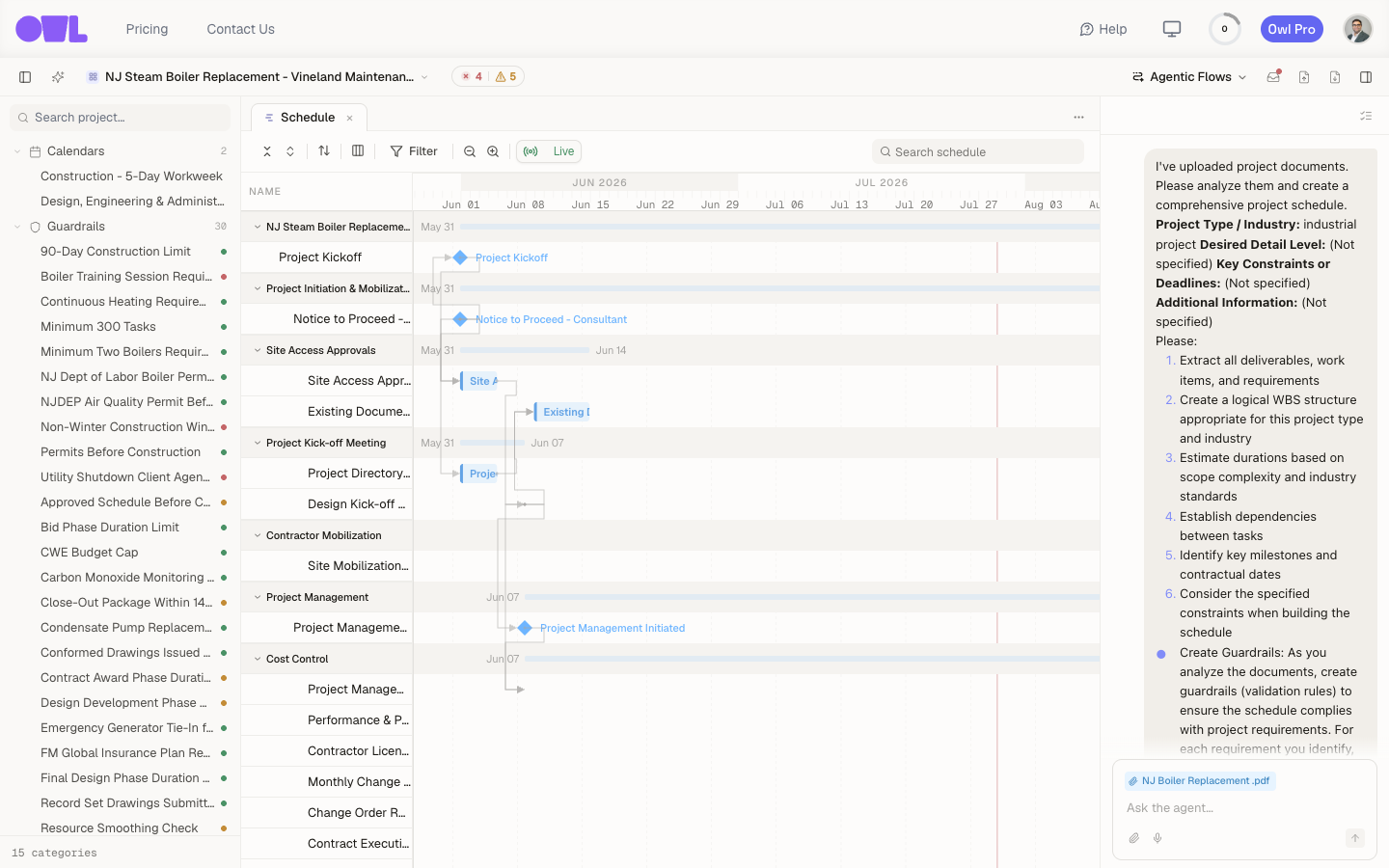 121The status pills — a red count of errors and an amber count of warnings: the one-glance health of the whole schedule.2The Guardrails list in the project tree — every rule with a colored status dot, so you can see which checks pass and which need attention.
Step 1 — Read the overall health
Click the status pills at the top of the workspace to open the guardrails summary.
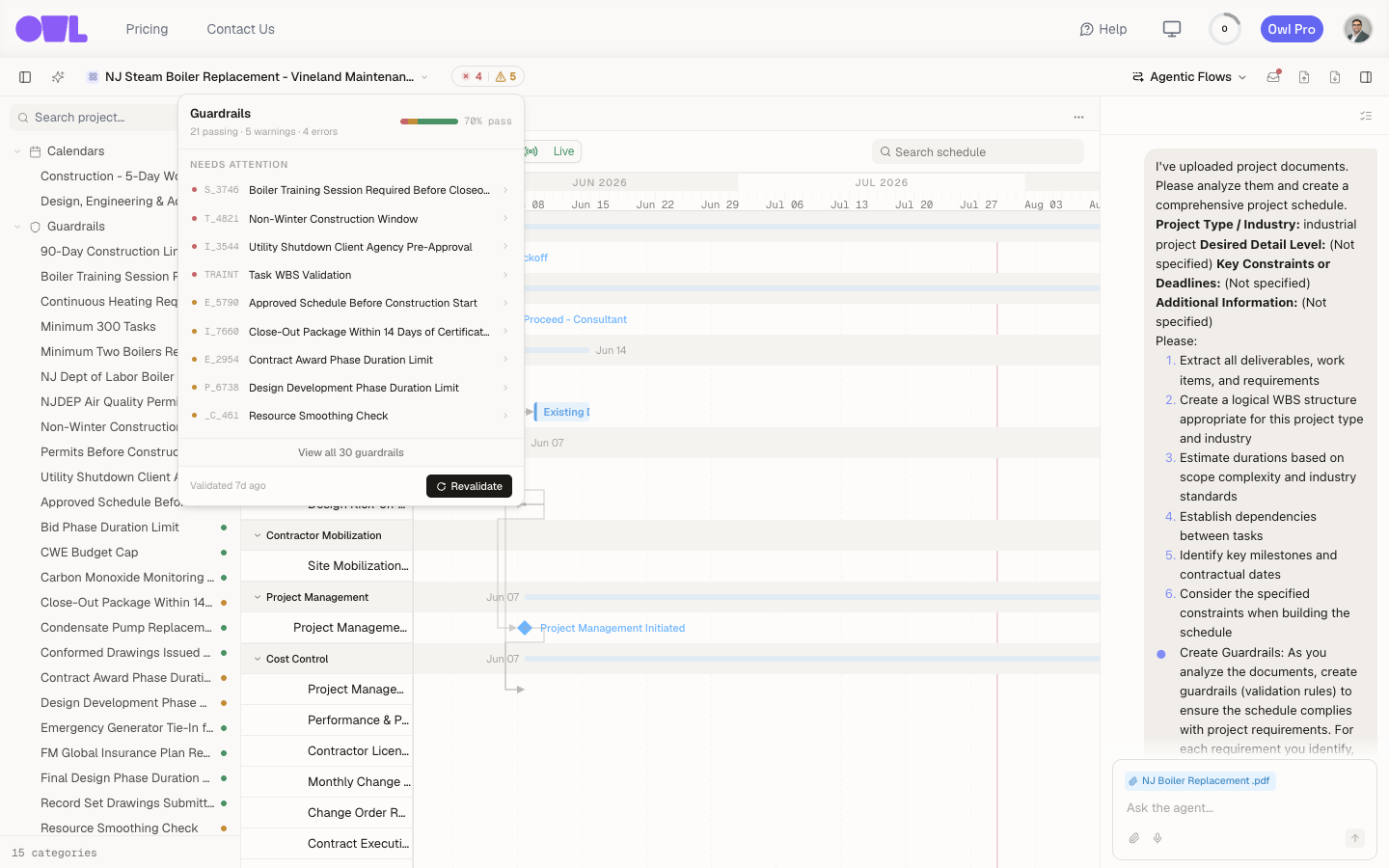 12341The headline numbers — 21 passing · 5 warnings · 4 errors, a 70% pass rate.2The Needs attention list puts the failing and warning checks first, so you can work top-down.3Click View all 30 guardrails to see the full set, including the passing ones.4Validated 4d ago shows how fresh the check is; Revalidate re-runs every guardrail on demand.
The header gives you the headline numbers — in this example 21 passing · 5 warnings · 4 errors, a 70% pass rate — and the Needs attention list puts the failing and warning checks first, so you can work top-down. Each row is one guardrail; click View all 30 guardrails to see the full set including the passing ones.
Note: An error (red) is a hard rule that's being broken — treat it as a must-fix. A warning (amber) is a softer signal worth a look but not necessarily wrong, like a resource booked slightly over 100%. Owl decides the severity when it writes the rule; you can change it later.
At the bottom, Validated 4d ago tells you how fresh the check is, and Revalidate re-runs every guardrail against the current schedule on demand.
Step 2 — Open a guardrail to see exactly what's wrong
Click any guardrail — in the summary list or in the project tree — to open its detail view.
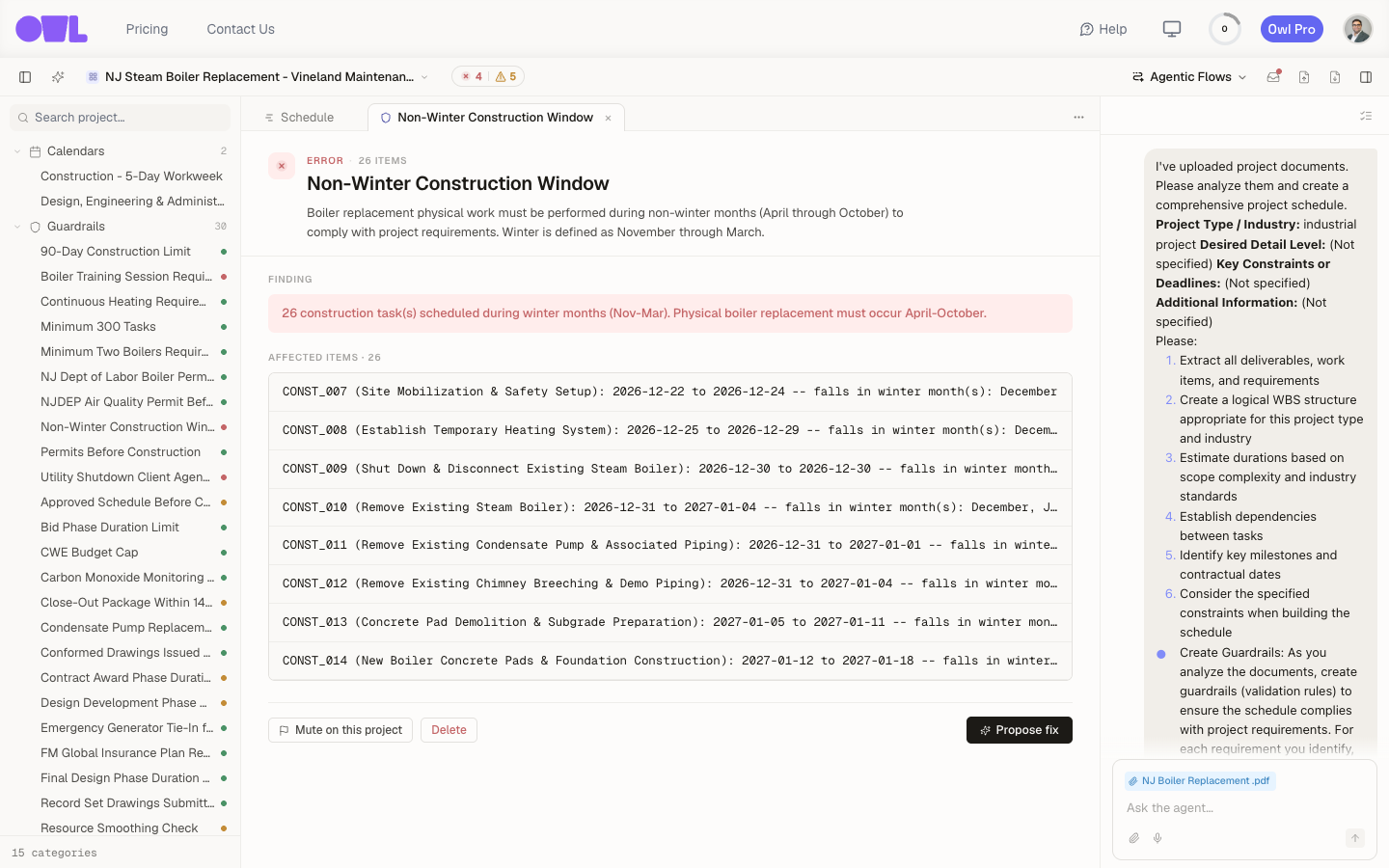 1231The rule — a plain-language statement of what must be true (physical boiler work only April–October).2The finding — what Owl actually found: 26 construction tasks scheduled during winter months.3The affected items — the exact tasks that break the rule, each with the reason.
A guardrail's detail tells you the whole story:
- The rule — a plain-language statement of what must be true. Here: "Boiler replacement physical work must be performed during non-winter months (April through October)… Winter is defined as November through March."
- The finding — what Owl actually found. Here: "26 construction task(s) scheduled during winter months (Nov–Mar)."
- The affected items — the exact tasks that break the rule, each with the reason. You can see CONST_010 (Remove Existing Steam Boiler): 2026-12-31 to 2027-01-04 — falls in winter month(s): December, January. No hunting through the Gantt to find them.
This is the difference between "something's off" and a concrete, actionable list you can fix.
Step 3 — Decide what to do with it
From the detail view you have three options:
- Propose fix — hand the problem to Owl and let it work out a schedule change that clears the rule (covered in Fix issues with your schedule).
- Mute on this project — silence a guardrail that doesn't apply here, without deleting it.
- Delete — remove a rule you don't want.
You don't have to use the buttons. You can triage straight from the chat:
Adding your own checks
Owl seeds guardrails from your documents, but you'll often think of rules it didn't. Just describe them:
Owl writes the check, runs it immediately, and from then on it's enforced on every change — the same way the built-in ones are.
What to do next
- Clear the failures — Fix issues with your schedule shows how to use Propose fix and iterate with Owl until the schedule is sound.
- Review a schedule you were handed — Audit a schedule (coming soon) uses these same signals to vet a contractor's plan and spot anomalies between updates.