

Import your schedule into Owl
If you already have a schedule in Primavera P6 or Microsoft Project, you don't have to rebuild it. Import the file and Owl brings in the tasks, the work breakdown, the calendars, and the relationships, then runs the schedule so you can work with it — check it against guardrails, run risk on it, chart it, or keep planning with Owl.
If you're starting from written scope instead of an existing schedule file, see Build a schedule from documents.
Before you start
Have your schedule file ready in one of these formats:
.xer— Primavera P6 export- P6
.xml— Primavera P6 XML - MS Project
.xml— Microsoft Project XML .mpp— Microsoft Project
Step 1 — Open the import window
In the top toolbar, click Import schedule.
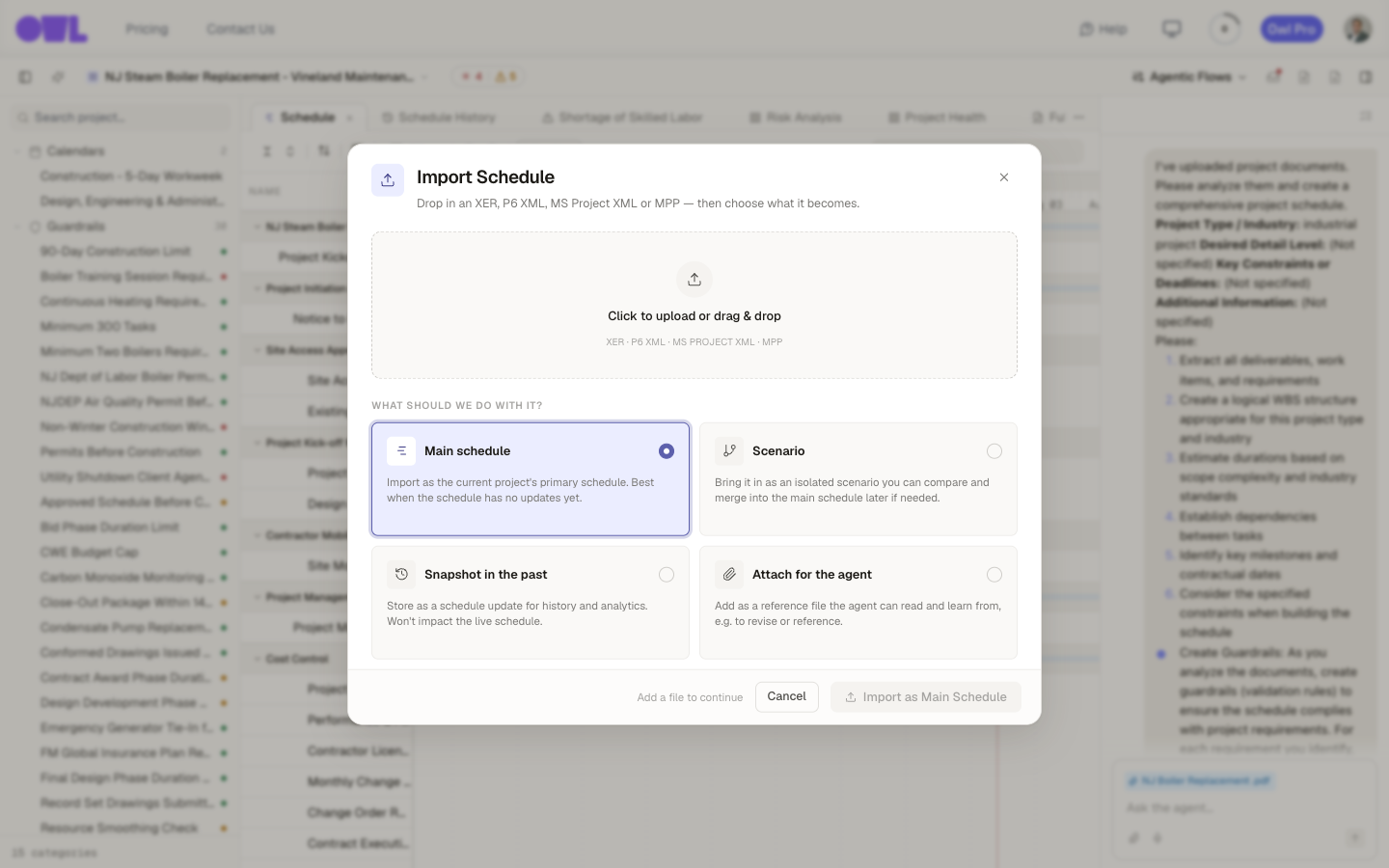 1231Drop your file on this area, or click to browse. Owl auto-detects XER, P6 XML, MS Project XML, and MPP.2Choose what the file becomes — Main schedule brings it in as the project's schedule of record.3When you're ready, click Import as Main Schedule to finish.
Drop your file on the upload area, or click to browse.
Step 2 — Choose what the file becomes
Importing isn't only for starting a project. Owl asks what the file should become, and the answer depends on what you're doing:
- Main schedule — import as the project's primary schedule. Use this when the project is empty or the file is the schedule of record.
- Scenario — bring it in as an isolated copy you can compare against the main schedule and merge later. Use this to evaluate a resequence or a contractor's alternative without touching your plan.
- Snapshot in the past — store it as a historical schedule update for history and analytics, without changing the live schedule. Use this to load a prior monthly update so trend charts and anomaly checks have something to compare.
- Attach for the agent — add the file as reference material Owl can read and learn from, for example a schedule you want Owl to revise or draw sequencing from.
Pick a mode and confirm — for a first import, that's Import as Main Schedule.
Tip: Loading a series of monthly updates as Snapshot in the past is what lights up the anomaly and trend views later. If you plan to audit how a schedule changed over time, import each update as a snapshot rather than overwriting the main schedule.
Step 3 — Review what came in
Large files process in the background; when the import finishes, open the Schedule tab to see the imported Gantt, with the work breakdown, calendars, and dependency links in place. From here the schedule behaves exactly like one Owl built — the whole guide applies.
Caution: An import brings across the schedule structure — tasks, WBS, calendars, and relationships. Depending on the source file, resource assignments and recorded actuals may not come across in full. Check anything cost- or resource-dependent (for example risk or an EVM dashboard) against the original before you rely on it.
What to do next
- Check the imported plan — Find issues with your schedule runs Owl's guardrails over it and flags dangling logic, out-of-window work, and more. This is worth doing right after any import.
- Keep working — talk to Owl to extend or resequence the schedule; every change re-runs the dates and re-checks your guardrails.