

Load your resources
A schedule with durations but no resources tells you when the work happens, not who does it, what it costs, or whether you can actually staff it. Loading resources — the crews, trades, and equipment that do the work — unlocks cost, utilization, and the checks that keep the plan achievable. Owl can generate the resources from your schedule and documents, or you can bring your own.
Note: A resource is anything the work consumes — a labor trade (pipefitters, a mechanical engineer), a piece of equipment (a crane), or a role (project manager). Each resource carries a rate and a type, and gets assigned to the tasks it works on. Once resources are assigned, Owl can roll up cost and show utilization over time.
Step 1 — Get resources into the project
There are three ways to populate the Resources list in the project tree:
- Have Owl generate them from the schedule and your documents. Owl reads the scope and the tasks and proposes the trades and roles the project needs — in this example it built out a full labor list (pipefitters, a lead mechanical engineer, electrical and controls trades, inspectors, and so on).
- Upload an existing list — a resource or rate spreadsheet your team already maintains.
- Add them by hand for a small project or a one-off.
Step 2 — Give each resource a rate and a type
Open a resource to set what it costs and what it is.
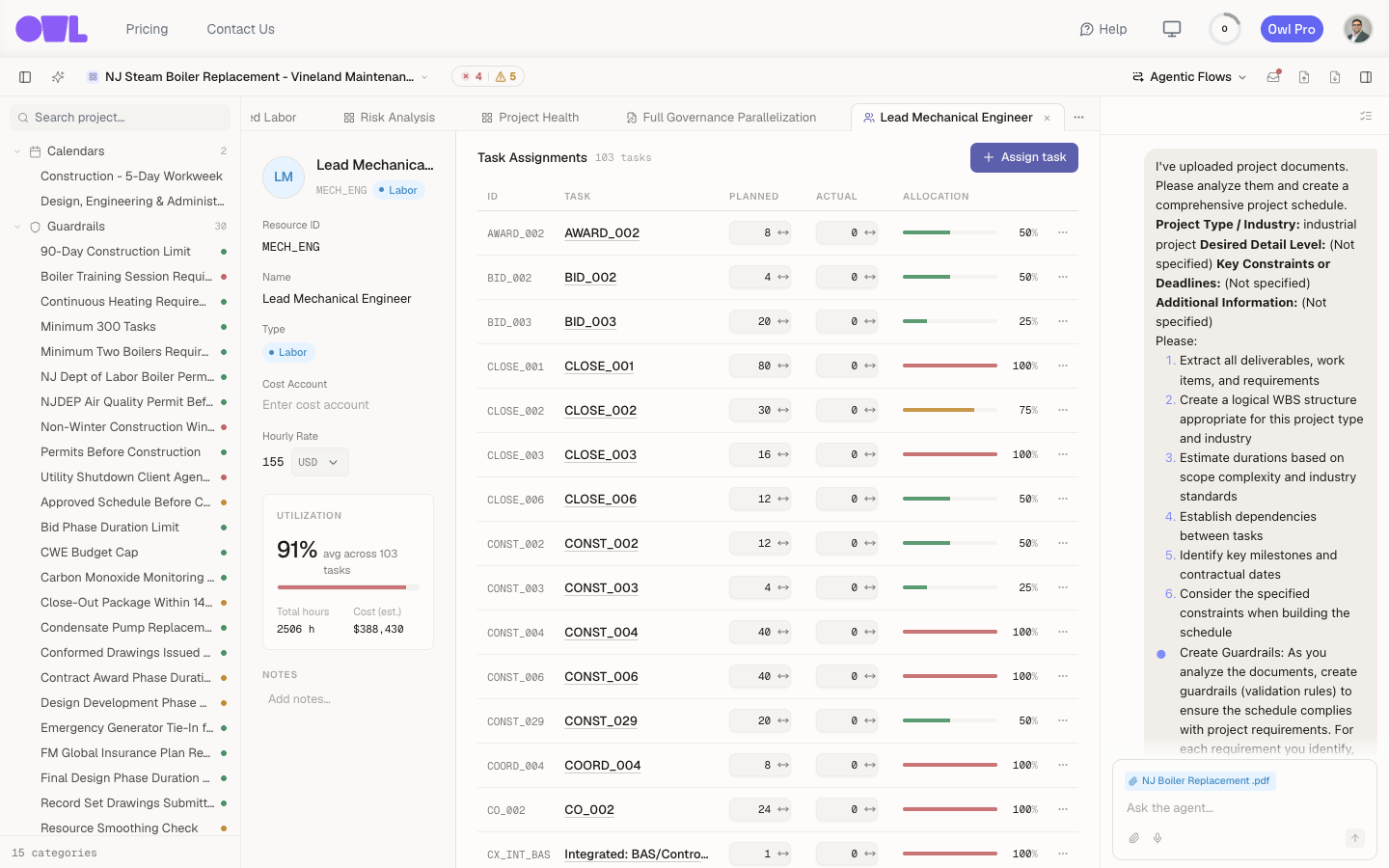 12341Type — labor, equipment, or material. This one is a Labor resource.2Rate — what an hour costs ($155/hour), so Owl can total the budget.3Utilization summary — 91% avg across 103 tasks, 2,506 hours, an est. $388,430.4The allocation column — color-coded bars: a task drawing the resource at 100% shows red, a lighter load green.
The resource above — Lead Mechanical Engineer — is a Labor resource at $155/hour. The detail carries:
- Type — labor, equipment, or a material.
- Rate and cost account — what an hour (or unit) costs, so Owl can total budget.
- A utilization summary — here 91% average across 103 tasks, 2,506 hours, an estimated $388,430. This is the resource's whole footprint on the project at a glance.
Step 3 — Assign resources to the work
Resources only matter once they're attached to tasks. Owl assigns them across the schedule for you, or you assign them yourself; each assignment records how much of the resource a task uses.
The Task Assignments table (on the resource detail) lists every task the resource works, with a planned and actual amount and an allocation percentage. The allocation bar is color-coded — a task drawing the resource at 100% shows red, a lighter load shows green — so over-committed work is visible immediately.
What to do next
- Keep the plan staffable — Keep resource use realistic covers the utilization view and the guardrail that stops wild hiring swings, so the schedule stays achievable.
- See the cost — with rates and assignments in place, resource cost rolls up into the project budget and feeds cost dashboards and EVM. Build a view with custom dashboards.