

How access works
Two questions come up over and over once a project is shared: why can this person see it, and how do I stop them. This page answers both.
The short version
There are two ways somebody ends up with access to a project:
- They're in the organization it belongs to. Everyone in Ridgeline Construction can open every project Ridgeline holds.
- You added them to the project. A client, a subcontractor, a consultant — they get that one project and nothing else.
If both apply to somebody, they get whichever is stronger. Access always adds up; it never cancels out. So the way to take access away is to remove it where it came from — which is why every person's row tells you where that is.
When somebody has both
Say Priya is a Viewer in Ridgeline Construction, and you make her an Editor on the boiler project.
She's an Editor on that project, and still a Viewer on everything else. That works — you can always give somebody more on one project.
Now say Marcus is an Admin in Ridgeline, and you set him to Viewer on the boiler project. Nothing changes: he stays an Admin there. You can raise somebody above their organization role on one project, but you can't lower them below it.
That's the one rule worth remembering, and it explains most of what you'll run into. If you need a project kept away from someone in the organization, mark the whole project Private — that's the tool for it.
Roles, and exceptions on top
Everyone holds one of four roles, whether it's on a project or across an organization:
| Role | What they can do |
|---|---|
| Viewer | Open, read, export. No changes. |
| Editor | Change the schedule, run the agent, add documents and scenarios. |
| Admin | Everything an Editor can, plus manage people and settings. |
| Owner | Full control. Can't be removed or demoted. |
On top of a role, you can hand somebody extra access to one kind of data — "can edit these two documents", "can edit all the scenarios". These are exceptions, and they follow the same rule as everything else: they add. Giving a project Editor "view" on documents doesn't hold them back — they were already able to edit those.
If you want somebody to see less, start them lower and add exceptions back up.
Taking access away
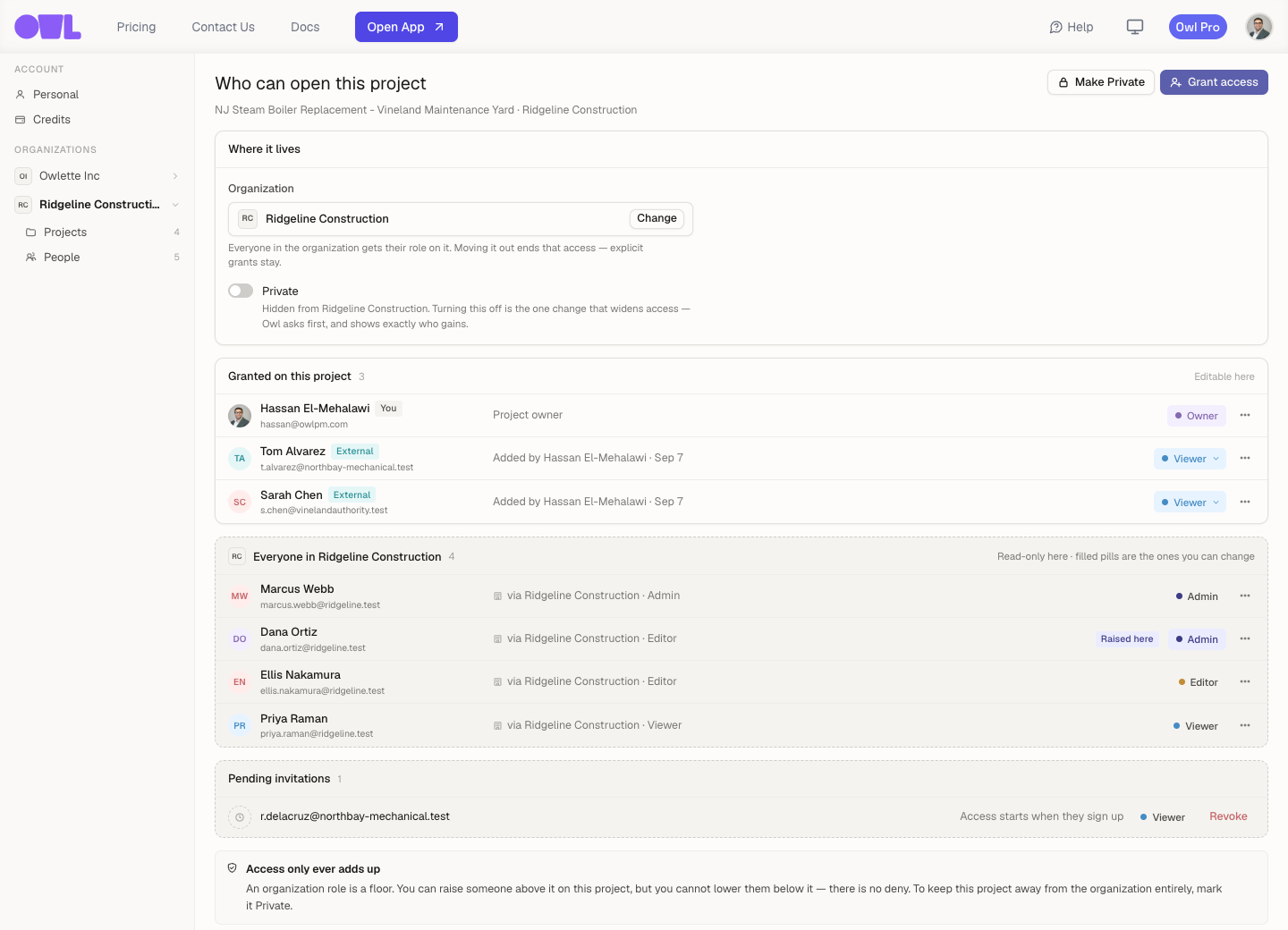 121These people were added to this project. Remove them here and they're out.2These people are in the organization. There's no Remove on their rows — their access doesn't come from this project. Mark the project Private, or take them out of the organization.
| What you want | What to do |
|---|---|
| Somebody you added to this project should go | Remove them from the Granted on this project group. |
| Somebody from the organization shouldn't see this one project | Mark the project Private. Only people added to it directly keep it. |
| Somebody should stop seeing anything | Remove them from the organization — then check individual projects, because anything you gave them directly still stands. |
| An invitation shouldn't have gone out | Revoke it while it's still pending. The link stops working. |
Invitations that haven't been accepted yet
Invite an email address that doesn't have an Owl account and nothing happens yet — they get a pending invitation and a signup link.
- Their access starts the moment they sign up. You don't need to add them again.
- If several people invited them to different things, signing up once picks up all of it.
- Until then they have nothing, and you can Revoke it.
- Resend sends a fresh link and stops the old one working, in case the first email went astray.
When somebody asks you for access
Open a project you can't reach and Owl says so, with a Request Access button. That sends an email to the project's owner and admins, along with any message that was typed.
There's no separate approval screen — you add them from the project's access page like anyone else.
What people get told
- Added to a project — they get an email, the first time. Changing their role later is quiet.
- Added to an organization — they always get an email. It hands them a role on every project in it.
- Invited by email — they get a signup link.
- Given an exception on specific items — nothing is sent; it's an adjustment, not a hand-off.
- Somebody requested access — the project's owner and admins get an email.
Common questions
Why can this person see my project? Open the project's access page. Everyone sits in one of two groups, and the group is the answer: Granted on this project means somebody added them; Everyone in your organization means the organization did. Their row also says who added them and when.
Can I give somebody just one document? Yes. Add them as a Viewer, then give them an exception on the documents you want them to have. Remember it adds — if their role already reaches those documents, the exception won't change anything.
Can a project be in two organizations? No. It's in exactly one, or it's personal.
What happens when a project moves out of an organization? The organization's people lose it. Anyone you added to the project directly keeps what they had.
What happens if the owner leaves the company? Hand ownership to somebody else first — an Owner can't be removed or demoted while they hold the role, and there's only one at a time.
What to do next
- Share a project — adding people, roles, Private, and exceptions, step by step.
- Share everything with your organization — set up the place your firm's projects live.