

Build a schedule from documents
The fastest way to get a full schedule into Owl PM is to hand Owl the documents you already have — a scope of work, a specification, a contract, a set of drawings — and let it read them and build the plan for you. Owl extracts the deliverables, works out a work breakdown, sets up calendars, and lays down the tasks and their dependencies, then runs the schedule so you get real dates.
Use this when you're starting a new project and you have written material that describes the work. If you're bringing in an existing Primavera P6 or Microsoft Project file instead, see Import your schedule into Owl.
Note: "Runs the schedule" means Owl calculates the start and finish date of every task from its duration, its calendar, and what it depends on — the same critical-path math a professional scheduling tool does. You don't have to place anything on a timeline by hand.
Before you start
Gather the documents that describe the work. Owl reads a wide range of file types:
- Text and documents — TXT, MD, PDF, DOCX
- Spreadsheets — XLSX
- Existing schedules — XER, XML (Primavera P6 / MS Project)
- Drawings and images — JPG, JPEG, PNG, WEBP (Owl reads drawings visually)
You don't need everything. Even a single scope-of-work PDF is enough to get a first draft. The more context you give Owl — specs, a contract, a milestone list — the closer the first pass will be to your intent.
Step 1 — Start a new build
Open the New Project menu (or the Get Started window that appears on a fresh workspace) and choose Build from Documents.
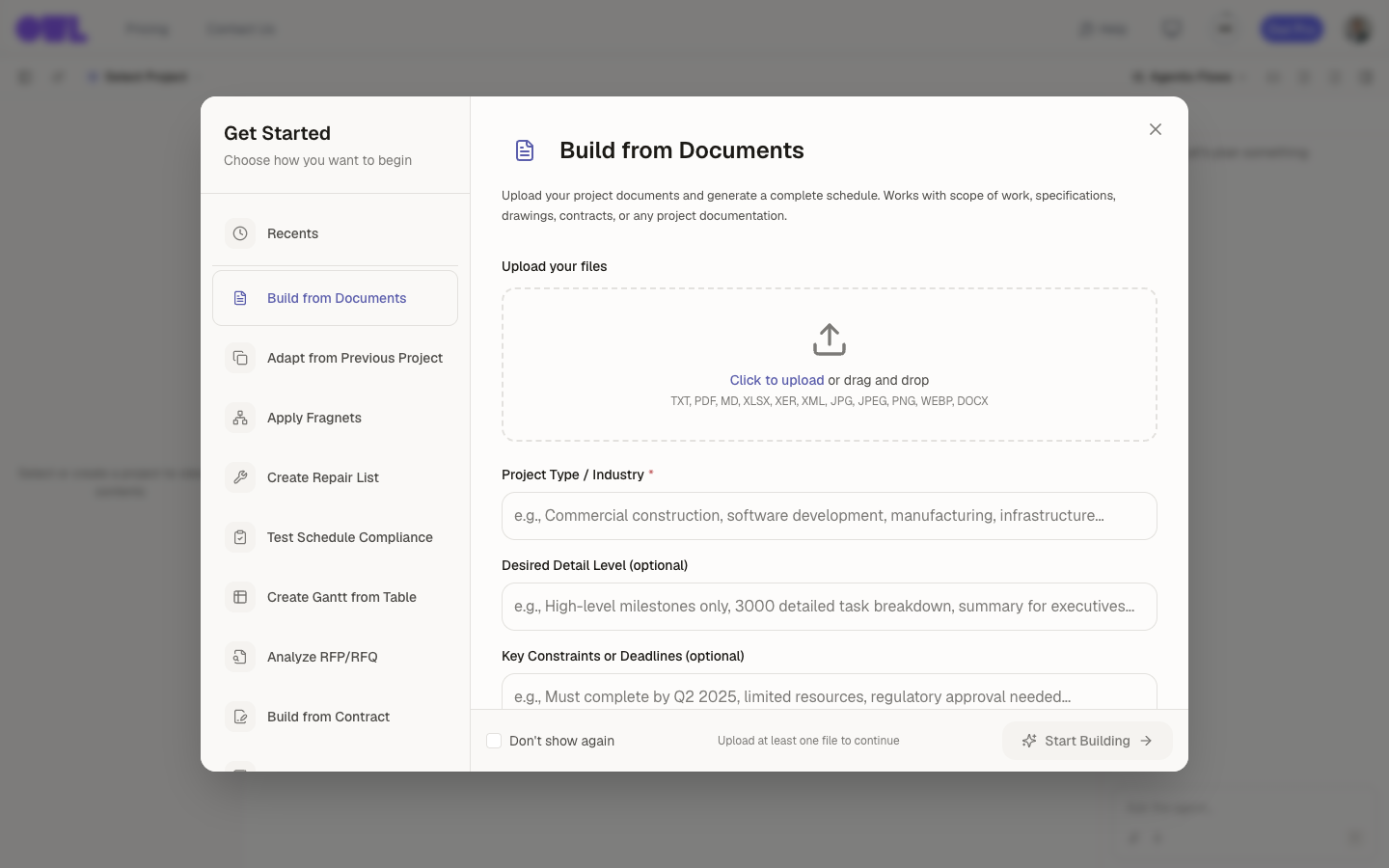 12341Pick Build from Documents from the Get Started list.2Click Click to upload or drag your documents onto the dropzone — several at once is fine.3Project Type / Industry (required) — tell Owl what kind of project this is.4Once at least one file is uploaded, click Start Building.
Then:
- Upload your files. Click Click to upload or drag your documents onto the dropzone. You can add several at once.
- Project Type / Industry (required) — tell Owl what kind of project this is, for example "Facilities / MEP — steam boiler replacement at a maintenance yard." This anchors the vocabulary and the trade sequencing Owl uses.
- Desired Detail Level (optional) — how granular you want the plan, for example "detailed task breakdown, ~400 activities" or "high-level milestones only."
- Key Constraints or Deadlines (optional) — hard rules and dates, for example "physical boiler work must happen April–October; keep one boiler running at all times." Owl uses these both to sequence the work and to write guardrails that keep the rule enforced later.
When at least one file is uploaded, Start Building becomes available. Click it.
Tip: Fill in the Constraints field. Anything you write here that reads like a rule ("no work during the winter months," "permits must be approved before construction starts") tends to come back as a guardrail Owl checks on every future change — not just a one-time note.
Step 2 — Steer the build as it runs
Owl doesn't disappear and hand back a finished file. It breaks the job into planning steps — read the documents, draft the deliverables, build the work breakdown, create calendars, generate the tasks, wire up dependencies — and works through them one at a time in the chat panel on the right. Each step is a small, self-contained brief that Owl hands off to a focused sub-agent, and each one is a checkpoint where you stay in control.
There are two moments to steer every step.
Before a step runs — shape the instruction
A queued step is just a brief waiting to run. Open it and you can rewrite that brief in plain language, point it at the right attachment, or change which builder handles it — so the sub-agent does exactly what you intend before it does anything at all.
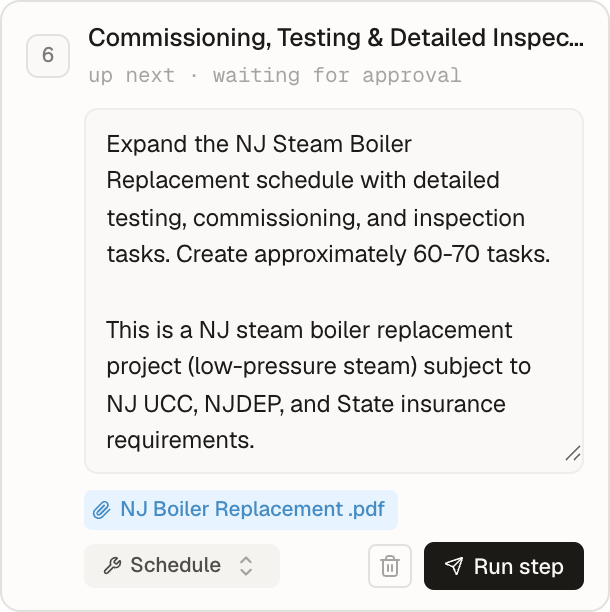 1231Edit the brief — spell out what this step should produce, in as much detail as you like.2Switch which builder runs it — WBS, schedule, risk register, and more.3When it reads right, click Run step.
After a step runs — review the output
A finished step doesn't silently move on. Its result lands in the matching view, and the step card gives you a direct link to open it — a WBS step opens the WBS editor, a schedule step opens the Gantt, a risk step opens the risk register. Review it there, then approve it, ask for changes, or edit it by hand.
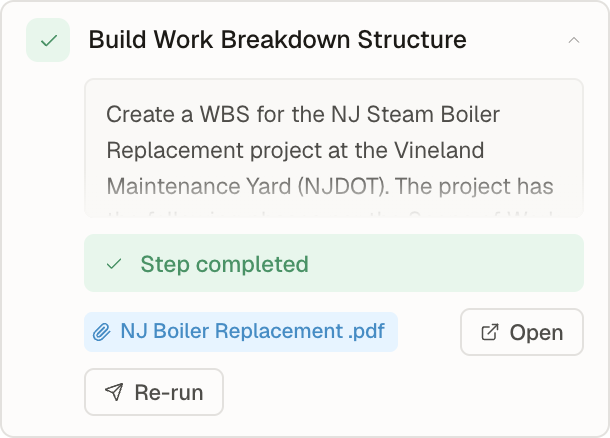 121Open the result in its own view — here, the WBS editor.2Not what you wanted? Re-run the step with new instructions.
Because each step builds on the one before it, catching a problem here saves rework later. Fix the work breakdown at the WBS step and every task in the next step is organized correctly from the start — instead of restructuring hundreds of tasks after the fact. By the time Owl reaches the scheduling step, you've already agreed on the deliverables, calendars, guardrails, and WBS it depends on.
You steer with ordinary messages:
Track the whole plan
You don't have to scroll the chat to follow along. The Planning steps button at the top of the chat panel opens the full plan — every step, in order, with its status.
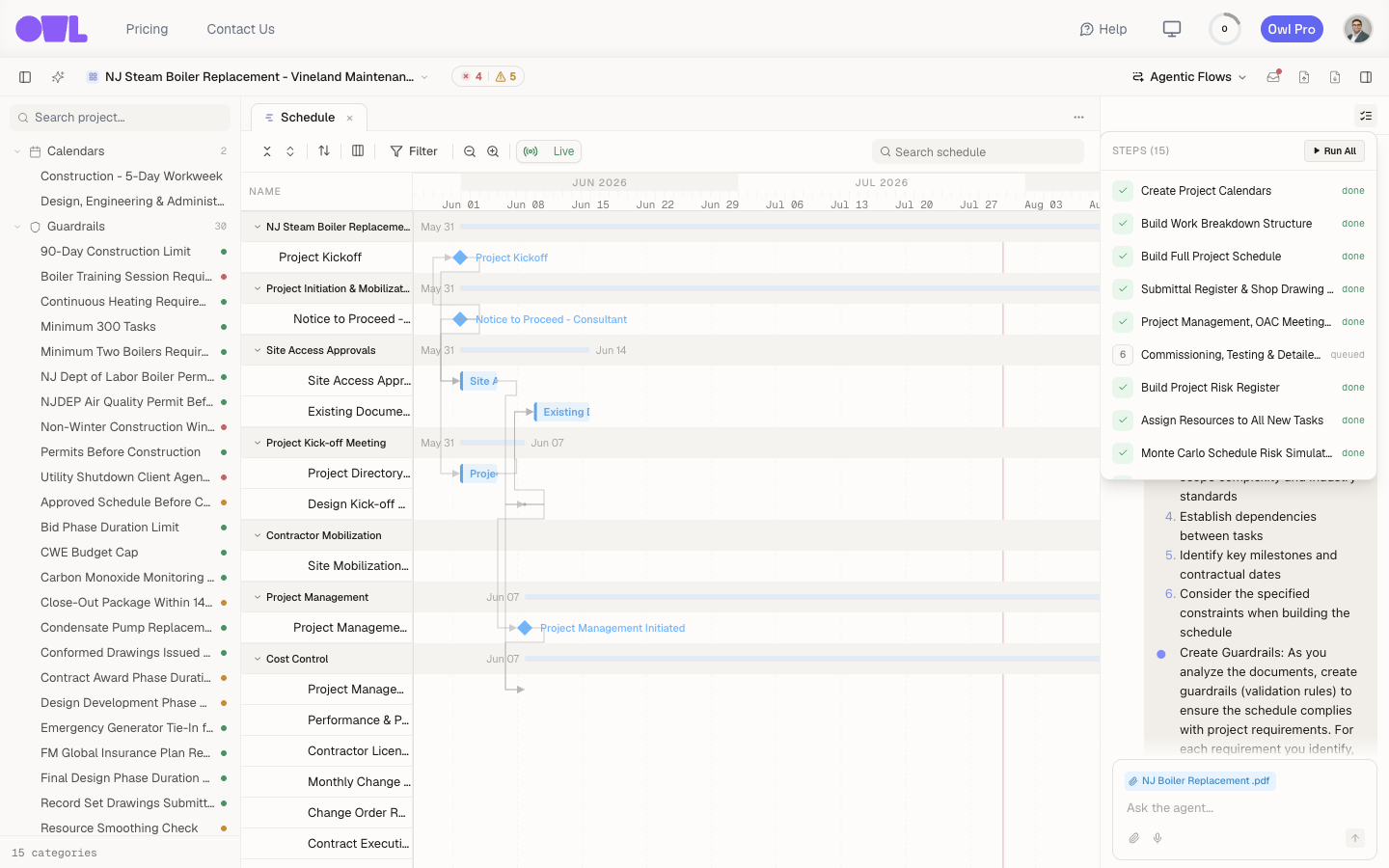 121Click the Planning steps button at the top of the chat panel…2…to open the full plan, right there in the chat.
Inside, you can see the state of every step at a glance — what's done, what's running, and what's still queued — and jump straight to any one of them without scrolling back through the conversation.
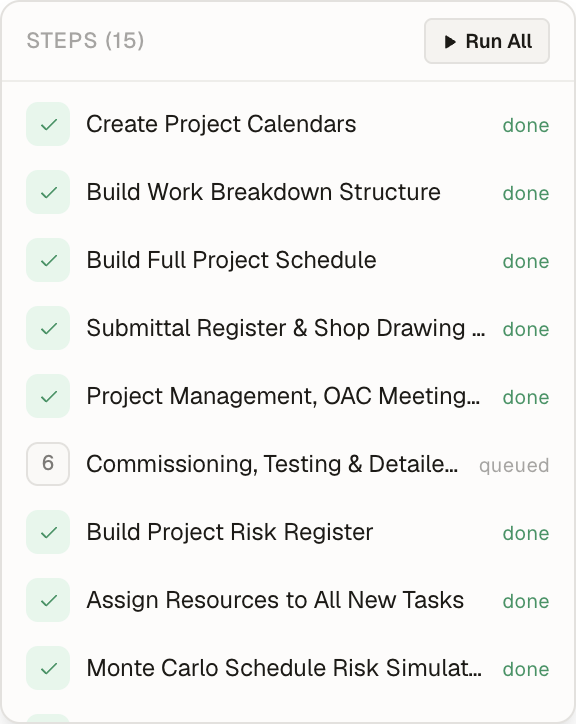 1231Every step's status at a glance — done, running, or queued.2Click any step to scroll the chat straight to its card.3Run All works through every remaining step in order.
Step 3 — Review what Owl built
When the build finishes, you have a complete, calculated schedule. Open the Schedule tab to see the Gantt, with the project tree on the left and Owl still available in the chat on the right.
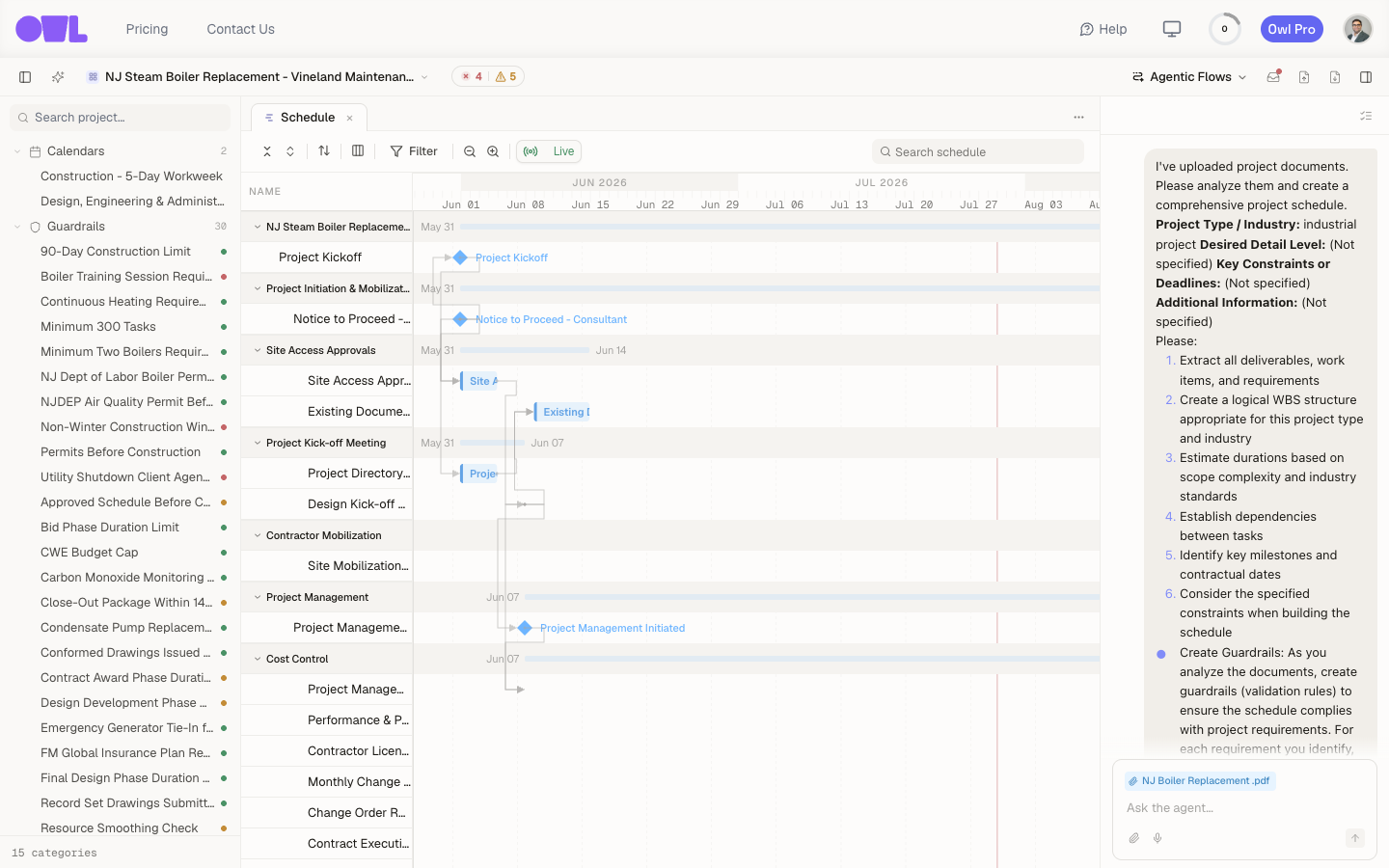 12341Calendars in the project tree — e.g. a Construction — 5-Day Workweek and a separate Design calendar.2Guardrails — the rules Owl inferred from your documents (30 here).3The Gantt — the work breakdown, tasks with dependency links, and milestone diamonds.4Owl's chat, still available to keep shaping the schedule.
From one set of documents, Owl produces:
- A work breakdown — the schedule organized into phases and groups (Project Initiation, Site Access Approvals, Contractor Mobilization, Cost Control, and so on).
- Tasks and milestones — activities with durations and dependency links; milestones show as diamonds (Project Kickoff, Notice to Proceed).
- Calendars — for example a Construction — 5-Day Workweek calendar and a separate Design, Engineering & Administrative calendar, so "10 days of work" respects the right working days.
- Guardrails — the rules Owl inferred from your documents and constraints, listed under Guardrails in the project tree. In this example Owl created 30 of them, covering things like a Non-Winter Construction Window and Permits Before Construction.
That last point is the reason it's worth being specific up front: the constraints you described don't just shape the first draft, they become checks that keep the schedule honest as it changes.
What to do next
- Check that the plan is sound — Find issues with your schedule walks through the guardrails Owl set up and how to read what's wrong at a glance.
- Keep shaping it — keep talking to Owl to add scope, re-sequence phases, or adjust durations; every change re-runs the schedule and re-checks your guardrails.
Caution: A first build is a draft, not a final schedule. Treat Step 2 as the real work: the schedule is only as good as the documents you gave Owl and the steering you did along the way.