

Explore what-if scenarios
Every project has open questions that a single schedule can't answer. Can we still finish on time if we run the governance approvals in parallel instead of in sequence? What happens if the boiler permit slips a month? Is the derisked plan worth the extra cost? A scenario lets you try the change on a safe copy of the schedule, see the effect, and compare it to your real plan — without touching the plan of record until you decide to.
Note: A scenario is a branch of your schedule — an isolated copy you can edit freely. Your main schedule doesn't change while you work in a scenario. When you're happy with it you can apply it back to the main schedule; if not, you leave it as a draft or discard it. Think of it like a sandbox for a specific question.
Step 1 — Turn a question into a scenario
Start from the open question and create a scenario named after it. You'll find scenarios under Scenarios in the project tree; Owl can create one for you, or you can branch the current schedule.
Naming each scenario after its question keeps them legible later — in this project the scenarios read as a list of experiments: Full Governance Parallelization, Conservative Governance Overlap, Derisked Schedule, Fix Boiler Training Sequencing.
Step 2 — Make the change safely
Open the scenario and edit it like any schedule — resequence tasks, change durations, add or remove work, or ask Owl to make the change. Everything you do stays inside the scenario.
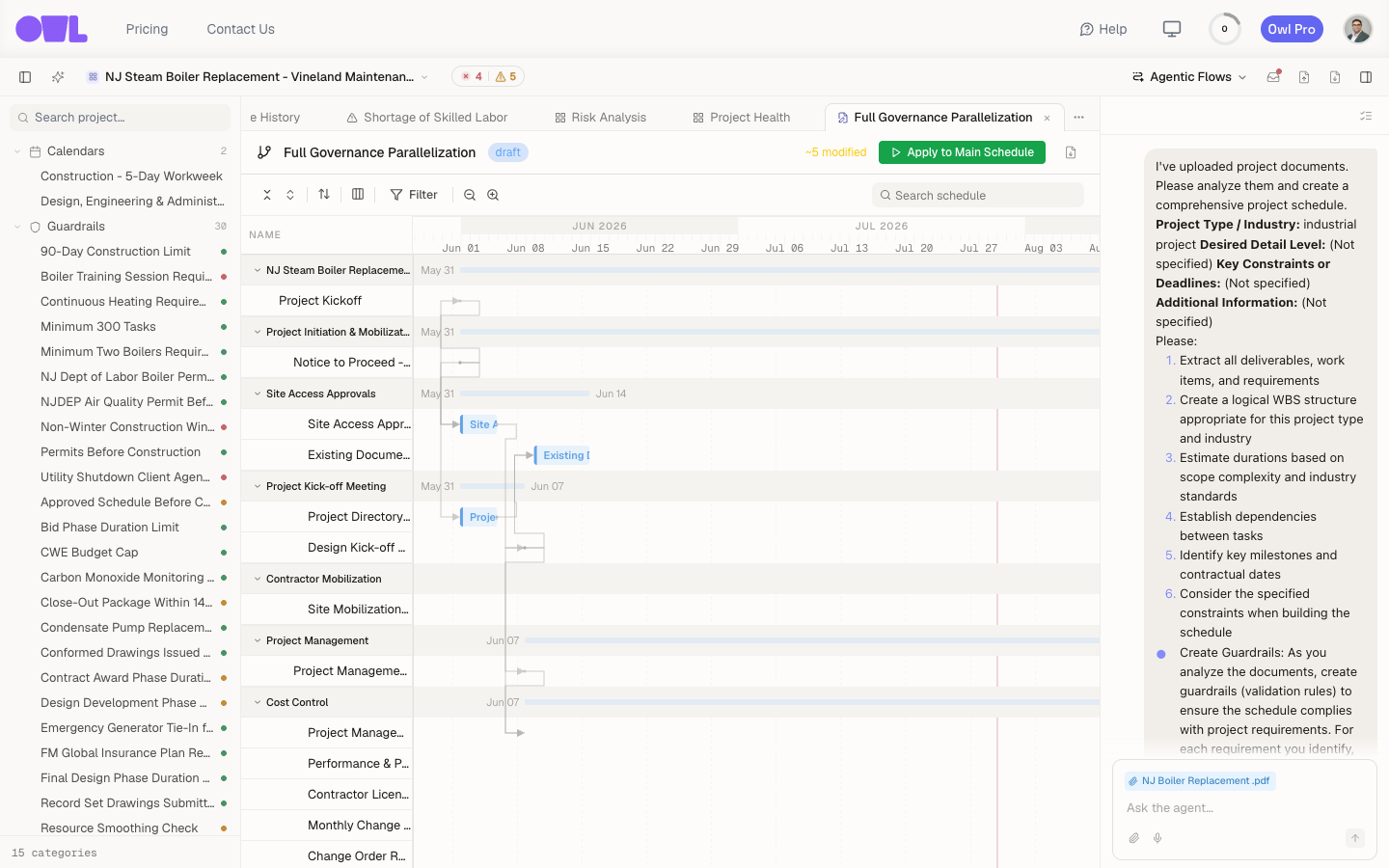 1231The scenario opens in its own tab, marked draft.2A running count of what you've changed — here, ~5 modified.3Apply to Main Schedule merges the scenario back into your real plan.
The scenario opens in its own tab, marked draft, with a running count of what you've changed (here, ~5 modified). Your main schedule is untouched the whole time — you can switch back to it at any point to compare.
Tip: Keep each scenario to one question. A scenario that answers "what if we parallelize approvals and add a second crew and push the permit" tells you nothing clean — you can't see which change drove the result. One question per scenario, then compare.
Step 3 — Compare against the main plan
The point of a scenario is the comparison. Owl tracks exactly what differs from the main schedule — the added, modified, and removed tasks — so you can see the effect of your change rather than eyeballing two Gantts. To answer the question with real numbers (finish date, cost, critical-path shift, P50/P90), run analytics against the scenario — see Analyze a scenario.
Step 4 — Apply it, or leave it as a draft
Once the scenario has answered its question, you decide:
- Apply to Main Schedule — merge the scenario's changes into your real plan. Use this when the what-if turns out to be the way forward.
- Leave it as a draft — keep it for the record or for a later conversation, without changing the main schedule.
- Discard it — the question's answered and you don't need the branch.
Because applying is an explicit, deliberate step, you can explore freely — nothing you try in a scenario affects the plan of record until you choose to merge it.
Caution: Applying a scenario changes your main schedule. Review the diff first, and remember that guardrails re-check the schedule after the merge — a scenario that looked good in isolation might trip a rule once it's back in the main plan.
What to do next
- Answer the question with numbers — Analyze a scenario points your dashboards and Monte Carlo at a scenario so you can compare P50/P90, cost, and schedule quality side by side with the main plan.
- Check the merged plan — after applying, find issues to confirm the change didn't break any guardrails.